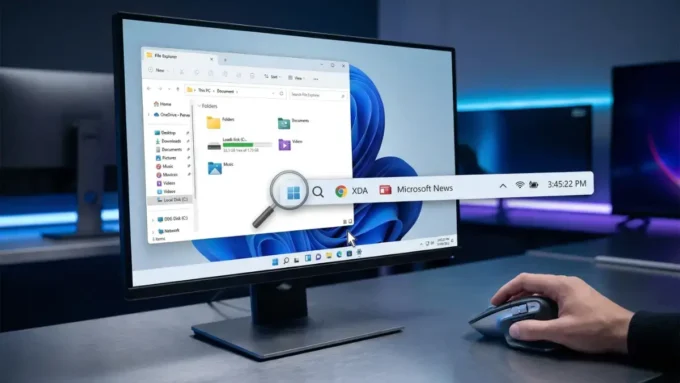


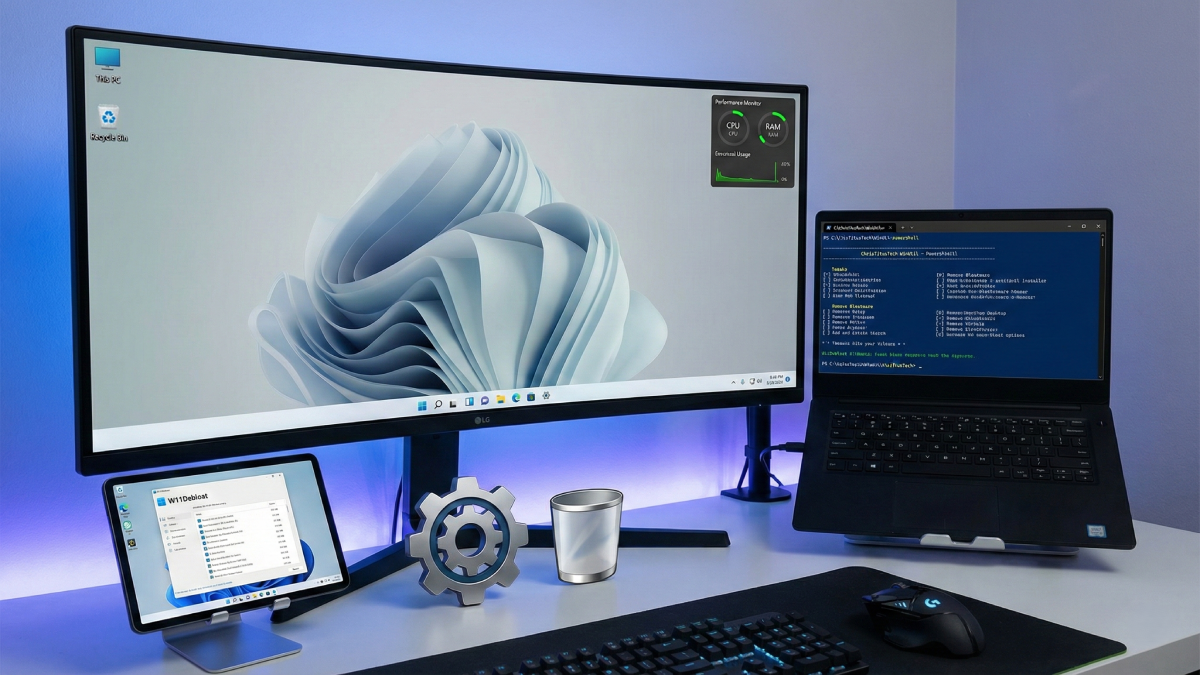
Got a new machine that crawls right after setup? Microsoft insists on tight specs for Windows 11, yet still packs it with countless tools and apps most users never touch. That slow feel might come from extra programs running behind the scenes without asking. Plenty of others face the exact same frustration. Here’s the upside – there are ways around the lag, no resignation required. Start fresh by removing what slows things down. A few smart tools help clear out the clutter safely. Instead of keeping every default thing, pick only what works for you. This builds speed while protecting key functions. The result? A machine that runs clean, shaped exactly how you want it.
A solid way to begin getting command of your computer? Try a program named Winhace – free, built by contributors. Instead of keeping every preloaded app shoved into new systems, it wipes them cleanly. Removing small tools isn’t all; it goes deeper, disabling extras like Hyper-V or even the Linux layer tucked inside Windows. What makes this one stand out is how clearly it shows each step, nothing hidden. Rather than just hitting a button and waiting, here you point and choose each item yourself. Hesitant about typing out PowerShell? This one shows everything clearly instead. What stands out is how it works not only after setup but right at the beginning too. Picture shaping your Windows install before it even begins – cutting parts you hate early on. Adding extra drivers slips in smoothly, long before the first reboot happens. Getting drivers ready ahead of time helps a lot when setting up a laptop that won’t recognize typing or touch controls until certain software loads. Free, built on open code, trusted by many – this tool travels well for moments when gadgets act up without warning.
Looking for something stronger? Try NTLite – a powerful debloater with a full visual layout, rare among tools stuck in code mode. Unlike most options built on scripts alone, this one offers precise control through clear menus and panels. Removing factory apps or internal functions happens cleanly, skipping vital pieces you may still need – Edge stays put unless chosen otherwise. Hidden layers open up here; parts buried in the OS, drivers locked down tight – all within reach. Be careful though. Once gone, certain elements won’t return with a simple fix or reset later. One wrong move could wipe out essential files, leaving no choice but to rebuild the OS from scratch. Though a basic edition sits ready at no charge for personal use, full power comes only with payment – a lifelong household pass takes about forty-eight bucks, whereas professional setups demand far heavier spending.
If big software feels like overkill, here’s something refreshingly straightforward. A small open-source tool steps in with a clean interface, guiding choices on what apps to remove. When certain parts refuse to vanish – like that new AI helper or memory-tracking function – a smart workaround takes charge, turning them off for good. Instead of full removal, it quietly blocks access. Beyond uninstalling programs, it handles common privacy adjustments too. A good example is the separate area for privacy settings, where turning off tracking features becomes possible – those that follow what you do across the interface. Shutting down the persistent Bing search tucked into the Start Menu happens here too, alongside adjustments to how the taskbar actually behaves behind the scenes. Timing and control of system updates shift into your hands, shaping deployment on your terms instead.
Truth is, when things must just work fast, ChrisTitiusTech’s WinUtil often comes up in real talk among those who fix Windows. Other tools ask you to grab files first, but this skips straight ahead – no downloads waiting around. Open Start, type PowerShell, then right-click and choose admin mode like you mean it. A lone line does everything: drop irm “https://christitus.com/win” | iex into the window and let it pull itself live. Screen changes once it loads. Then go poking through the tweaks section – one by one killing off nonsense running behind your back. Starting off, preset suggestions help cut down busywork by marking secure options on their own. Though launching scripts online with higher access has some risk in theory, people have checked this one many times – it usually causes no trouble. Here’s a thought: just because deletion feels possible doesn’t guarantee it’s wise. Junk cleanup gives a big boost to performance, yet wiping essential web parts could trigger odd issues later. Before pressing go, take time to scan what’s lined up – choices matter.
Disclaimer: The information provided in this article has been collected from publicly available sources on the Internet. Readers are requested to verify this information with available sources.