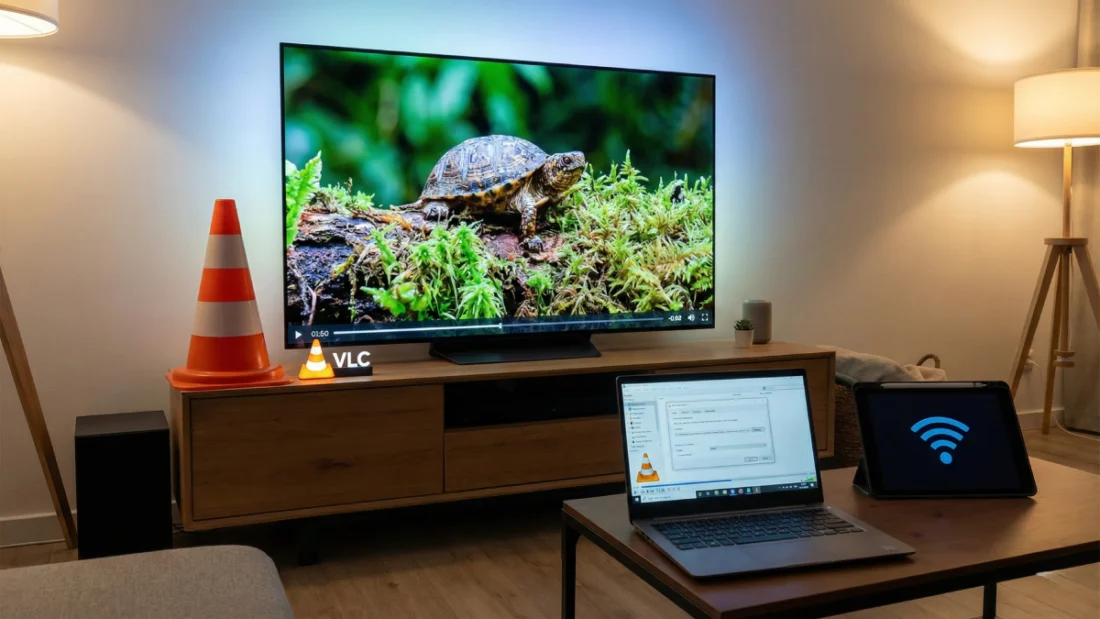
Truth is, most people have seen that bright orange cone around. For years now, one program’s stayed on top without trying too hard. Files nobody else touches? It opens them like nothing. Old clips from way back when, heavy-duty video files today – it handles each the same way. That stubborn thing from 2004 plays fine. Even dense 4K stuff runs smooth. Yet when all you do is open a video by clicking twice and pressing play, you miss nearly everything this software can handle. Many people see it as just another tool they keep around, though behind its plain look hides a range of features capable of doing jobs your other programs now fill.
Also read:Why Your Windows Task Manager Is Secretly Tricking You Every Day
That built-in file converter? Super helpful, yet hardly anyone notices it. Ever had a video too big to send or one your device refuses to play? Most folks jump onto Google searching for some free web tool – then get bombarded by ads and weird watermarks. A better path lies inside VLC itself. Open the Media menu, hit Convert/Save. Works like a charm, quietly powerful. A huge movie file? Shrink it into an MP4 that runs smooth on Android or iPhone. Pull sound from any clip, turn it straight into an MP3. Speedy work happens right on your machine. Your personal files never touch the web – no uploads, no distant servers watching.
Also read:Windows 11 Is Finally Fixing the Absolute Worst Thing About Your Printer
Funny thing – VLC, that player sitting quietly on your computer, actually grabs whatever shows up on your screen. Not packed with glitzy extras like high-end tools, sure, yet sharp enough for a fast tutorial or snagging part of a livestream mid-flight. Head into “Open Capture Device,” pick Desktop instead of default options, then press record without fuss. Odd how such obvious tricks stay hidden until someone points them out, right? Beyond screen grabs, this same spot lets you pull video straight from a webcam feed. Even better, plug in an older capture device and start pulling footage off worn-out home movies stored on tape reels long forgotten.
Also read:This Professional Design Secret That Costs Zero Dollars and Rivals Industry Giants
Loving foreign films might mean wrestling with unclear audio when action ramps up. Suddenly, finding words on screen becomes essential. Instead of jumping between sites hunting a proper .SRT, something smoother exists. Hidden inside VLC lives a tool named VLsub doing the legwork. While your film plays, it pulls matching text straight into vie
w. No extra steps. Just timing and luck fade away. Timing stays sharp because it verifies your file’s hash. Five-second gaps between words and lip movements? Gone. Anyone tired of digging through folders will find this shifts everything. The way files sync now – completely different story.
Ever notice how weird it feels when subtitles show up too early or too late? What if the sound trails behind the picture – like a person shuts a door but the noise arrives much later? That delay can ruin the moment. There is no need to toss the file aside in annoyance though. A fix exists inside VLC. Pressing J moves audio earlier by tiny steps. Hitting K pushes it slightly ahead. Each tap adjusts timing by just fifty milliseconds. It takes patience. But slowly, things line back up. A tiny change, yet it separates disaster from everything clicking into place. When subtitles need adjusting, press G or H – timing stays sharp, moment after moment.
When it comes to sharper tools, VLC steps up through its ability to stream across networks. A quiet trick? Pasting YouTube links straight into the “Open Network Stream” field – no ads, no browser drag. Some overlook how smoothly it pulls video right out of the web address you give it. Then there’s the way it reaches back toward devices at home, linking directly to stored files on a personal server. Starting at your home server or a folder living on another machine, VLC knows how to find its way through network spots. Without moving hefty files between gadgets, simply guide the app to where they sit – then press play and relax. From there, everything flows straight from origin to screen.
Picky about picture quality? Head straight to the Effects and Filters section. Most viewers think playback is fixed, yet VLC slips in lightweight editing tricks behind the scenes. Tweak light levels, color depth, or sharpness while the clip plays – no pause needed. Old mobile footage shot upright stutters on wide screens, though rotation fixes misalignment fast. Reshape the frame using geometry options so it lines up clean with your display edges. Sound settings include a 10-band equalizer along with spatial effects. Voices get easier to hear through weak laptop speakers when midrange frequencies are increased. Using headphones opens up room-like audio spacing by adjusting the spatial feature.
Also read:Your Linux Desktop Just Got a Massive Power-Up: Everything New in KDE Plasma 6.6
Only now does it hit how handy the VLC Remote really is. Picture this: settled on the couch, film playing, then – volume too quiet or a dull part drags. Up you get, breaking the calm. But flip on the web feature inside VLC’s options, suddenly your phone acts like a real remote. Some go for special apps, others type the address straight into their phone’s browser. Control playback, mute, jump ahead – all without moving an inch. That moment when comfort stays untouched feels rare. This keeps it that way. What keeps VLC alive isn’t flashiness – it’s how each tool builds on the last, turning basic playback into something far more useful. Week after week, hidden options reveal a program built without shortcuts, one that doesn’t track, nag, or slow down. That bright orange icon? You begin to see it differently when you realize what it quietly handles behind the scenes. Instead of chasing trends, it simply works – quietly, reliably, exactly when needed. Over time, those small functions add up to an experience most modern apps still can’t match.
Disclaimer: The information provided in this article has been collected from publicly available sources on the Internet. Readers are requested to verify this information with available sources.