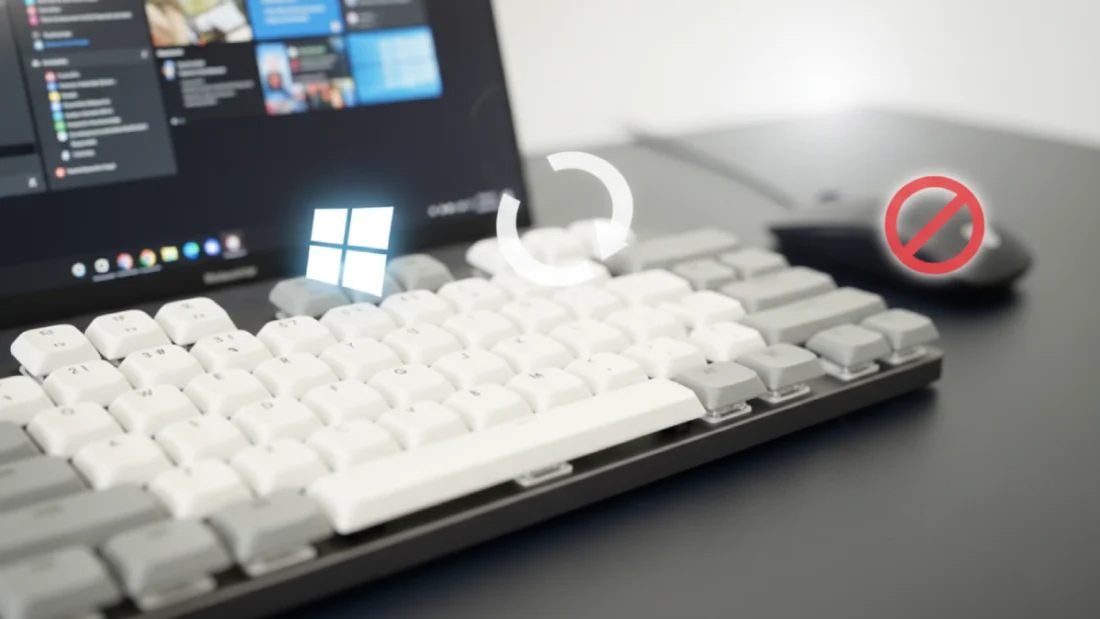
Lately, working at my computer feels different because I’ve begun focusing on doing things more deliberately. A big reason? Using the keyboard way more than before. Sure, the mouse still works fine – nobody said it broke – but something changed once I saw how many moments slipped by while clicking around. Shifting windows bit by bit, scanning the screen for one tiny symbol, even reaching back for a file I’d seen moments earlier – all those little actions piled up quietly. When I finally tuned into those motions, it struck me: so much of what felt routine was really interruption wearing a familiar face.
A shift happened once I picked up a tight group of keyboard tricks meant for everyday multitasking snags. Not endless menus of tricky keystrokes memorized page by page – just a few solid ones that follow the real flow of working on Windows. Seven stood out, cutting through the noise of app switching and window clutter. They reshaped how fast I moved between tasks without extra clicks or hunting around. Anyone tired of wrestling windows might find relief here, tucked into simple key pairs. The change wasn’t loud – it showed up quietly each morning, saving seconds that stacked. Start here, maybe, if dragging tabs feels like pushing rope.
Start here instead: pick just three shortcuts if that’s all you’ve got in the tank. These should handle the messy parts – when fingers dance across screens hunting for controls. Picture it: dragging windows into place, jumping app to app, wrestling focus back from chaos. Most never notice how rough those moves are until they vanish. Smoothness slips in once the grind fades. Everything slows down on its own. Precision shows up quietly.
Start fast with the Windows Key along with an Arrow key – windows snap right where they need to be. No dragging needed, just press and done. Switching tasks? Try holding Alt while tapping Tab instead of hunting icons down below. It cuts through apps like a shortcut others miss. Need space suddenly? Hit Windows Key then D for instant quiet on screen. Clutter fades out, everything clears up in one go. Try it once. Pick a single stretch of work. Stick just to those three ways of moving windows and shifting between jobs. Before long, doing it becomes automatic. Finish that round – you’ll notice your hands know where to go.
Most of the time lost at work hides in small moves you barely notice. A window slips past the corner when pulled too far. That tiny error means adjusting by hand – again. Momentum dies each time. Pressing Windows Key with an Arrow cuts through the mess. One motion snaps it into place. Every time. The rhythm stays smooth. Windows stick neatly to either edge when nudged into place. Slide through quarter views by cycling their position step by step. A quick gesture fills any window to full screen without delay. After a short time, drifting boxes fade from thought. Arrangements take over instead – notes pinned left, drafting space wide open right. The way things fit together becomes second nature.
When working with multiple monitors, hitting Windows Key then Shift along with an arrow key changes everything. Three screens fill my daily setup, yet sliding windows across them once felt slow. Now they jump straight from display to display. This shift keeps flow during busy moments – tossing a note to the edge or bringing chat front again happens fast. Focus stays locked where it should.
Moving from one app to another is where the mouse tends to drag things down. Instead of clicking the taskbar, you might waste time searching across cluttered screens. Alt then Tab keeps a steady beat – sharp and reliable. Decide clearly which window comes next; hesitation makes it sluggish. If what you want isn’t running yet, start with Windows Key followed by S. Every time I need an app, a file, or a control panel, it pops open fast – no reaching for the mouse. With just a few keystrokes, everything lines up exactly when I want it, slipping between tasks like nothing. The flow never breaks, even when switching gears mid-thought. Tools appear where they’re needed, then vanish quietly once done.
Mistakes happen. Recovery often drags on longer than expected. A wrong link might slip through, or an app freezes without warning. Grabbing the mouse then tends to worsen the irritation. Here’s what helps instead: press Windows Key with V. Your clipboard history opens up, no longer stuck on only the latest copy. Finding that lost chunk of words? It might be hiding in the past versions. That tool needs switching on before it helps, though.
If an app freezes, pressing Ctrl Shift Esc drops you right into Task Manager. No need to hunt down options or sit staring at a frozen screen. You regain control fast. These shortcuts aren’t meant to make typing memorization part of your job. Their purpose? Cutting out the interruptions that pull focus away. Pick the shortcuts that fit how you already work. Let those stick until they feel automatic. Then bring in others only if they prove useful day after day. What matters most is not moving fast. It is keeping attention on the task, not on clicking through menus. Smooth flow comes from vanishing friction between thought and action.
Disclaimer: The information provided in this article has been collected from publicly available sources on the Internet. Readers are requested to verify this information with available sources.