If you have ever spent an entire afternoon downloading different Linux distributions or trying to create a Windows installation media, you know the absolute headache that comes with the traditional “flashing” process. For years, the standard procedure involved finding a spare USB stick, downloading a tool like Rufus or Etcher, and then waiting for it to format the drive and slowly write the image. The worst part? If you wanted to try a different operating system ten minutes later, you had to wipe the entire drive and start from scratch. It is a tedious, repetitive cycle that feels incredibly outdated in our world of high-speed storage and instant gratification. Fortunately, a powerful open-source tool called Ventoy has completely flipped the script on how we manage bootable media, making the old way of doing things feel like stone-age technology.

At its core, Ventoy is a specialized bootable USB creator, but describing it that way almost feels like an understatement. Unlike traditional tools that “burn” an image onto a drive, Ventoy installs a thin layer of software onto your USB stick once, creating a hidden boot partition and leaving the rest of the space as a standard, usable storage area. Once that initial setup is done, you never have to format the drive again to change your operating system. You simply grab an ISO, WIM, IMG, or VHD file and drag it onto the USB drive as if you were moving a movie or a document. When you plug that drive into a computer and boot from it, Ventoy provides a clean, simple menu listing every single file you dropped onto it. It is essentially a “Netflix for operating systems” right on your keychain, allowing you to carry your entire digital toolkit in one pocket.

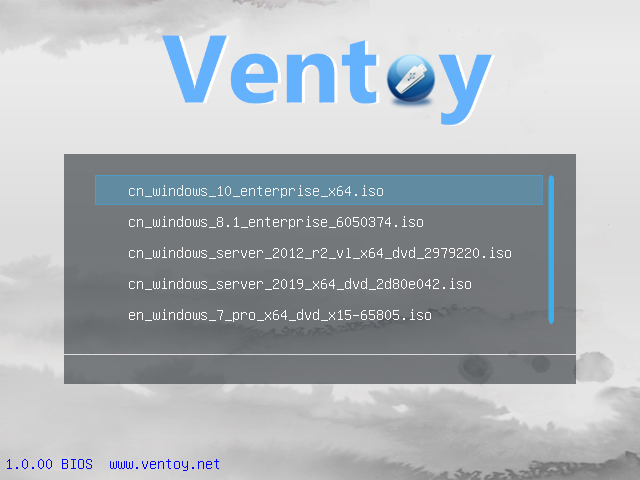
The technical brilliance behind Ventoy lies in its ability to boot files directly from the disk without needing to extract them. While other tools unpack the entire contents of an ISO and modify the drive’s file system, Ventoy remains non-destructive. This means you can use the same USB drive for your personal files—photos, school assignments, or work backups—right alongside your bootable installers. As long as you have enough storage space, you can carry a dozen different versions of Windows, every flavor of Ubuntu, and specialized recovery tools like Hiren’s BootCD all at once. For IT professionals, system administrators, or even just the “tech person” in the family, this is an absolute lifesaver. You no longer need a drawer full of labeled USB sticks; one high-capacity drive can now handle every scenario you might encounter.

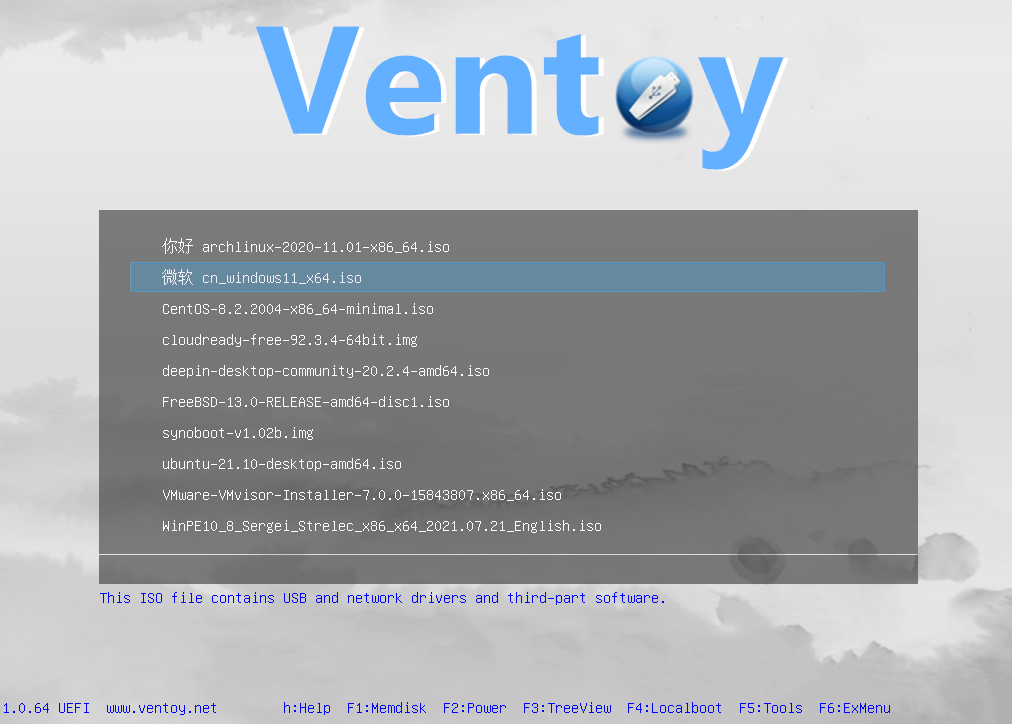
Another reason the tech community has embraced Ventoy so enthusiastically is its incredible compatibility and feature set. It supports both Legacy BIOS and UEFI modes, and it plays surprisingly well with Secure Boot, which has historically been a major pain point for third-party bootloaders. Furthermore, it doesn’t just stop at standard ISO files. Ventoy supports more complex formats like VHDx (virtual hard disks) and WIM files, which are often used in enterprise environments for deploying Windows images. Because it is open-source, the development pace is blistering. The tool is frequently updated to support new hardware and bypass modern restrictions. For instance, Ventoy includes built-in options to bypass specific installation requirements, allowing users to install Windows 11 on older hardware that lacks TPM 2.0 or specific Secure Boot requirements, all with a simple configuration tweak that saves hours of manual Registry editing.
Using the tool is remarkably straightforward, even for those who don’t consider themselves “tech-savvy.” The interface is minimal and focuses on utility. When you first launch the Ventoy installer on your PC, it asks you to select your USB drive. Once you hit the install button, it prepares the partitions. From that moment forward, your interaction with the software is mostly finished. You won’t even need to open the Ventoy application again unless you want to update the internal version. You just interact with your USB drive through the standard File Explorer on Windows or Finder on a Mac. This ease of use is what puts it in the same league as the best user-friendly utilities featured on major tech websites. It takes a complex technical task—managing boot sectors and partition tables—and hides it behind a familiar drag-and-drop interface.
Beyond the basic functionality, Ventoy offers a robust plugin system for power users who want to get under the hood. You can customize the look of the boot menu with themes, set up “persistence” for Linux distros (allowing you to save files and settings on a Live USB so they don’t disappear when you reboot), and even automate operating system installations using “unattended” XML files. It is this balance of extreme simplicity for the average user and deep customizability for the expert that has made Ventoy a staple in the digital toolkit. It represents the best of open-source software: it solves a universal problem, it’s free to use, and it puts the power back into the hands of the user. In an era where hardware and software seem to be getting more locked down, having a tool that makes your hardware more flexible is a breath of fresh air.
The versatility of this tool becomes even more apparent when you realize it supports over 1,100 different image files. Whether you are testing the latest beta of a new OS, running a hardware diagnostic tool, or performing a clean install of a Windows workstation, Ventoy handles it with grace. It eliminates the “USB shuffle” where you constantly search for the right drive, only to find it has the wrong version of the software you need. With the cost of high-capacity flash drives dropping every year, it is now practical to carry a 128GB or 256GB drive that contains every operating system you could ever possibly need. This shift from “burning” to “copying” is not just a minor improvement; it is a fundamental change in how we think about system maintenance and software deployment.
In conclusion, if you are still using the “one drive, one OS” method, you are working harder than you need to. Whether you are a “distro-hopper” looking to test the latest version of Fedora, an IT worker fixing broken computers, or just someone who wants a reliable Windows recovery drive “just in case,” Ventoy is the definitive answer. It saves time, reduces wear and tear on your flash drives, and eliminates the frustration of constant formatting. By turning your USB stick into a versatile, multi-tool library of operating systems, Ventoy has set a new standard for what we should expect from our utility software. It is fast, efficient, and quite frankly, a bit like magic for anyone who deals with computers on a regular basis.
Disclaimer: The information provided in this article has been collected from publicly available sources on the Internet. Readers are requested to verify this information with available sources.