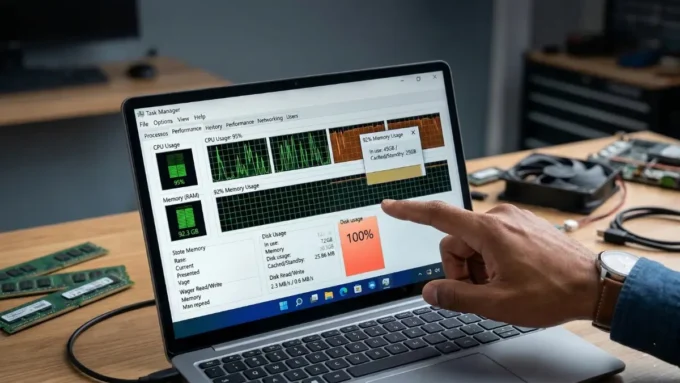


Imagine you are right in the middle of an intense gaming session, the frame rate looks high on the counter, but something feels off. You notice a tiny hitch here, a microstutter there, or perhaps the whole experience just feels a bit “jittery” despite your expensive hardware. Maybe it isn’t even in a game; perhaps you’ve noticed that your computer isn’t quite as snappy as it used to be when you click on the Start Menu or try to open a simple app icon. It feels like the machine is waking up from a nap every time you ask it to do something. While there are a hundred different reasons why Windows might act up—it is a complex operating system, after all—one of the most overlooked culprits is sitting right in your power settings. No matter how powerful your CPU or GPU might be, they simply cannot perform at their peak if the operating system is restricting the flow of electrons to the silicon. If you want that “day one” speed back, it might be time to crank up the juice.
Modern versions of Windows have become incredibly aggressive when it comes to prioritizing power efficiency. Don’t get me wrong; there is absolutely nothing wrong with being environmentally conscious. In fact, Microsoft and many other tech giants have been riding the green energy train for quite a while now. We’ve seen this manifest in various ways, such as the energy-aware downloading features on Xbox Series consoles that try to time updates when the local power grid is using more renewable sources. Because Microsoft controls the OS that most of us use for work and play, they have the power to set the default behavior for millions of machines. This isn’t just a frivolous change, either. When you save just a few watts across millions of active PCs, it adds up to a massive reduction in power consumption, which helps cut down on pollution and the effects of climate change. However, there is a fine line between being efficient and being restrictive. When those power-saving measures become so aggressive that they start to negatively impact your user experience, that’s when the balance has shifted too far in the wrong direction.
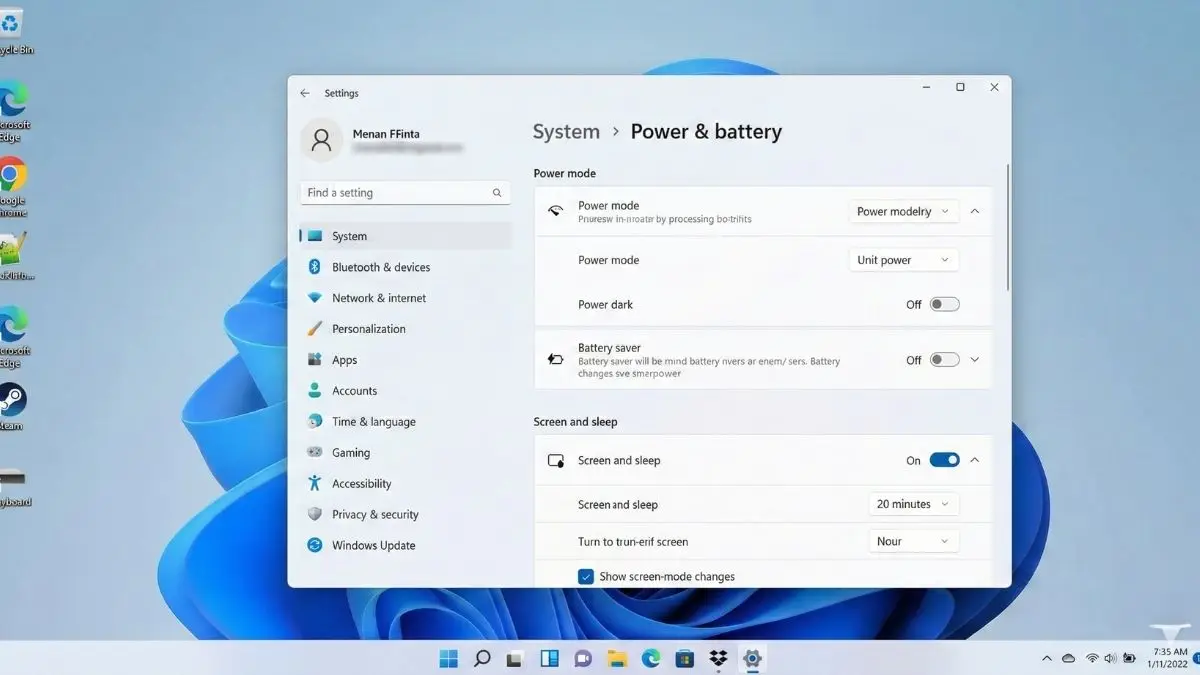
The biggest issue for most users is that the “Balanced” power mode isn’t actually balanced anymore. On a standard Windows machine, you will usually see three main presets: Best Power Efficiency, Balanced, and Best Performance. Depending on which version of Windows 11 you are running, these might also be labeled as “Power Saving” or “High Performance,” but the logic remains the same. You can find these tucked away in the Settings menu under System, then Power & Battery, or in the classic Control Panel under Hardware and Sound. Most systems default to “Balanced,” which is intended to give you performance when you need it and save energy when you don’t. On paper, this sounds like the perfect middle ground. In theory, the computer should rev up like a sports car when you launch a game and then idle quietly when you’re just reading an article. But in practice, I’ve found that the modern “Balanced” setting is tipped way too far toward saving power. It spends so much time trying to be “green” that it forgets to be fast.
When the system is trying to save power, it uses techniques like “parking” CPU cores or putting USB controllers into a low-power sleep mode. The problem is that power management often breaks real-time workloads first. This results in what we call system latency. When your CPU parks a core or drops its voltage and clock speed to save a few milliwatts, it takes a measurable amount of time for that component to “wake up” and return to full speed. You might not see this in a benchmark, but you will definitely feel it. You can actually see this happening in real-time using a tool like LatencyMon. On my own workstation, these aggressive settings manifested as annoying audio pops, Bluetooth devices randomly dropping their connection, and those dreaded stutters in video games. It made a high-end computer feel like a budget laptop from a decade ago. If you do anything latency-sensitive—like gaming, music production, or even high-speed networking—these power-saving “hiccups” can ruin the experience even if your average frame rate looks perfectly fine.
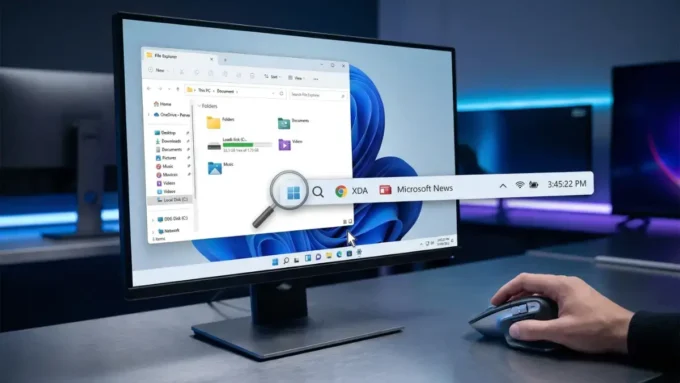
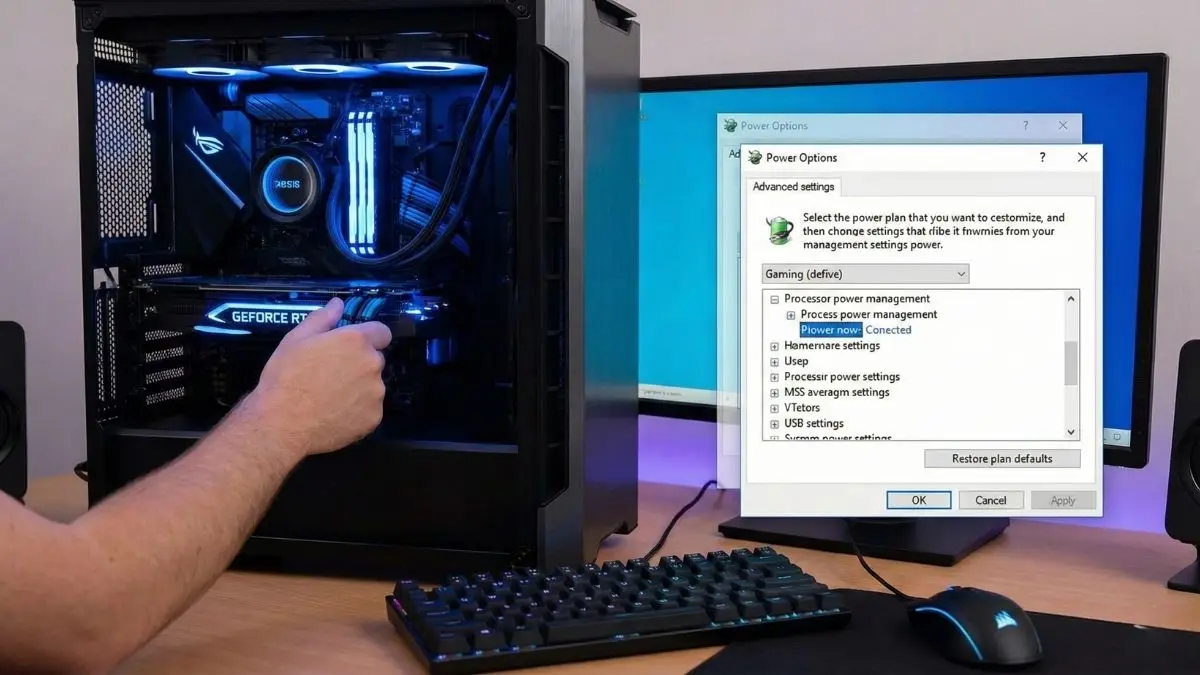
So, how do we actually fix this and make the PC feel fast again? If you are using a laptop, I generally recommend leaving the battery settings alone so you don’t kill your runtime while traveling. However, when you are plugged into a wall outlet, there is no reason to let Windows throttle your experience. To start, open your Start Menu and search for “Edit Power Plan.” Once that window pops up, look for the option that says “Change advanced power settings.” This will open a small legacy window filled with various hardware dropdowns. This is where the real magic happens.
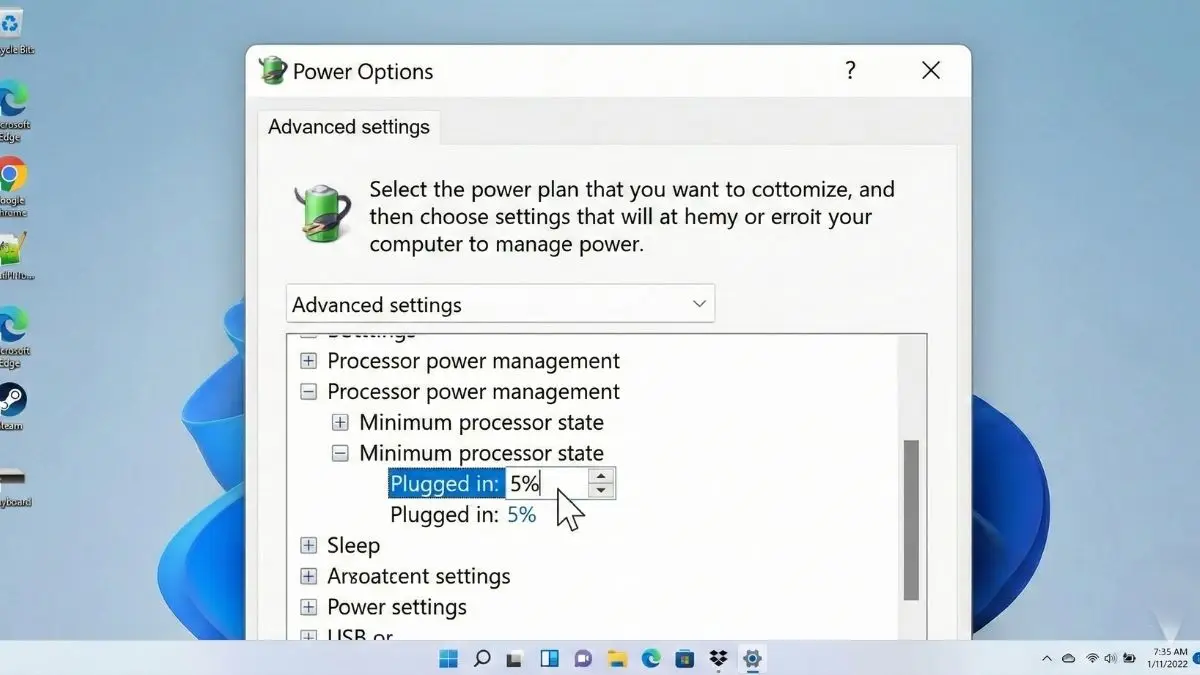
Navigate through the list until you find “Processor power management,” then expand “Minimum processor state.” On many systems, the “Plugged in” value is set to a measly 5%. This tells Windows that it’s okay for the CPU clock speed to crater whenever you aren’t moving the mouse. Try changing this value to 10% or even 20%. By raising this floor, you prevent the processor from entering those ultra-low-power states that cause a delay when they try to ramp back up. While you can go higher, 10% to 25% is usually the “sweet spot” that eliminates stutters without causing your fans to blast at full speed while you’re just checking email. You can keep tweaking this number and testing it with your favorite games or apps until that snappy, responsive feeling returns. It’s a small change, but it’s often the difference between a frustratingly laggy experience and a buttery smooth one.
Disclaimer: The information provided in this article has been collected from publicly available sources on the Internet. Readers are requested to verify this information with available sources.