No products in the cart.
Current date
February 24, 2026


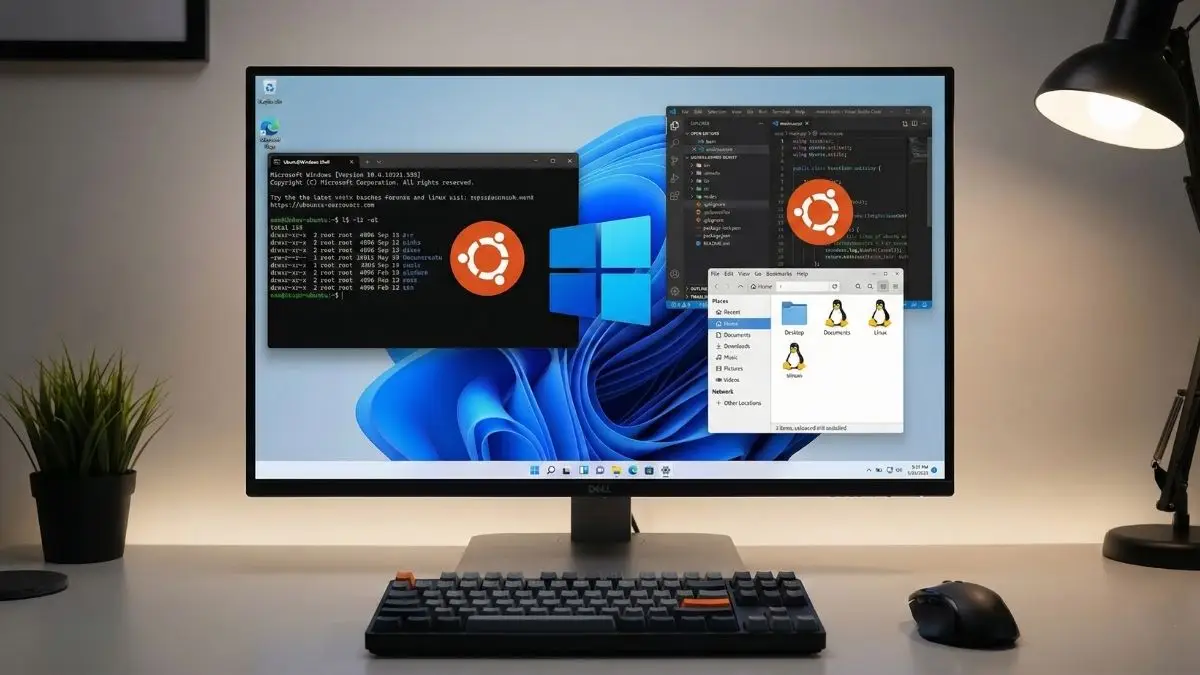
I Ditched Dual-Booting: Why WSL is Finally Good Enough to Kill Native Linux
There is evidence that the food industry designs ultra-processed foods to be highly rewarding, to maximize craveability and to make us want more and more and more
 James BrownFebruary 11, 20264 Mins read
Share
URL copied
For the longest time, the ritual was always the same: hit the power button, mash the F12 key, and wait for the Grub bootloader to give me the choice. It was a digital double life. One side was for gaming and Adobe apps; the other was for “real work”—the Bash scripts, the command-line tools, and the development environments that just feel more at home on a Linux kernel. But lately, my Linux partition has been gathering digital dust. The Windows Subsystem for Linux, or WSL, started as a convenient curiosity, but it has officially evolved into a native Linux killer for my daily workflow.
When Microsoft first announced WSL, it was essentially an emulation layer. It was a neat trick, allowing you to run some basic commands, but it wasn’t “real” Linux. It was slow, limited, and lacked the raw power needed for heavy lifting. Fast forward to today, and WSL 2 has changed the game by running a genuine Linux kernel inside a highly optimized, lightweight virtual machine. The transition from emulation to virtualization was the turning point that made me realize I didn’t need to restart my computer three times a day just to switch contexts.
Running Linux natively always felt like the only way to get full performance and direct hardware access. In the past, if you tried to run a Linux VM through something like VirtualBox or VMware, you’d deal with massive overhead, sluggish file transfers, and the constant headache of “allotting” specific chunks of RAM and CPU cores that your host OS could no longer touch. Native Linux was the antidote to that clunkiness. It gave me full access to my hardware and a seamless way to interact with my NTFS partitions. But as WSL matured, those advantages started to shrink.
One of the biggest hurdles used to be Docker. For developers, Docker is practically oxygen. Before WSL 2, running Docker on Windows was a rough experience, often requiring bulky Hyper-V setups that felt like they were held together with duct tape. Now, Docker integration with WSL 2 is buttery smooth. Containers start instantly, the resource management is handled dynamically by Windows, and I no longer have to sacrifice half my system’s stability just to run a simple web server. It was one of the first major reasons I stopped clicking “Ubuntu” at the boot screen.
The “magic” of WSL 2 lies in its integration. When you run a native Linux distro alongside Windows, you’re essentially living in two different houses. If you need a file from the other side, you have to hope the permissions play nice or use a USB drive like it’s 2005. With WSL, the walls are gone. I can be in a Linux terminal, type “explorer.exe .” and a Windows window pops up showing me my current Linux directory. I can run Windows executables from the Linux command line and pipe their output into Linux tools. It’s a level of cross-pollination that you just can’t get with a traditional dual-boot setup.
Then there is the issue of disk space. Partitioning a hard drive is a commitment. You have to decide exactly how many gigabytes you want to “quarantine” for Linux. If you run out of space on your Linux partition but have 500GB free on Windows, you’re usually stuck moving partitions around with risky tools. WSL lives on your main C drive as a dynamic virtual disk. It grows as you need it and stays out of the way when you don’t. Both operating systems share the same pool of storage, which is a massive win for anyone who hates micromanaging disk utility tools.
For many, the final nail in the coffin was the introduction of WSLg—the “g” stands for GUI. For a long time, WSL was strictly a command-line affair. If you needed to see a window, you were out of luck. Now, WSL supports X11 and Wayland applications out of the box, complete with hardware-accelerated graphics and sound support. I can run a Linux-only IDE or a specific Linux browser window, and it sits on my Windows taskbar just like any other app. They blend together so perfectly that I often forget which OS is actually “owning” the window I’m currently typing in.
Now, to be fair, native Linux still has its place. If you are the type of user who loves to rice your desktop environment, tweak your bootloader, or work with low-level hardware drivers, WSL isn’t going to satisfy you. It’s still a virtualized environment at the end of the day. If you try to play high-end Linux games or run intensive 3D rendering software like Blender through WSL, you’re going to notice a performance hit compared to a native install. WSL is a tool built primarily for developers and power users who need the Linux ecosystem without the baggage of a second OS.
But for the vast majority of us who just want access to a powerful terminal, a real package manager like apt or pacman, and the ability to run scripts without jumping through hoops, WSL is the peak of convenience. Rebooting your entire computer just to check a script or run a quick grep command feels like an obsolete solution in 2026. Time is the most valuable resource we have, and WSL saves me more of it than any other tool in my kit.
I still have a deep love for the Linux ecosystem, but I’ve realized I don’t need a dedicated partition to be a “real” Linux user. I want the best of both worlds: the app compatibility and gaming prowess of Windows, combined with the development power and flexibility of Linux. For the first time ever, I actually have that. WSL has turned my Windows machine into the best Linux laptop I’ve ever owned, and I don’t see myself going back to the boot menu anytime soon.
Disclaimer: The information provided in this article has been collected from publicly available sources on the Internet. Readers are requested to verify this information with available sources.
Author







Linux James BrownFebruary 17, 2026
Your Linux Desktop Just Got a Massive Power-Up: Everything New in KDE Plasma 6.6
If you have spent any time in the Linux world, you know that KDE Plasma is often hailed as the gold standard...
James BrownFebruary 17, 2026
LinuxJames BrownFebruary 11, 2026
I Ditched Dual-Booting: Why WSL is Finally Good Enough to Kill Native Linux
For the longest time, the ritual was always the same: hit the power button, mash the F12 key, and wait for the...
James BrownFebruary 11, 2026
LinuxDivyanshuFebruary 5, 2026
Stop Checking Your Phone: How to Add a Live Clock Directly to Your Linux Terminal
Hours vanish when code takes over. A flickering cursor holds attention while daylight fades outside. Is it evening? Past midnight? Hard to...
 DivyanshuFebruary 5, 2026
Related ArticlesJames BrownFebruary 17, 2026
DivyanshuFebruary 5, 2026
DivyanshuFebruary 5, 2026
DivyanshuFebruary 5, 2026
Your Linux Desktop Just Got a Massive Power-Up: Everything New in KDE Plasma 6.6
If you have spent any time in the Linux world, you know...
James BrownFebruary 17, 2026
Stop Checking Your Phone: How to Add a Live Clock Directly to Your Linux Terminal
Hours vanish when code takes over. A flickering cursor holds attention while...
DivyanshuFebruary 5, 2026
Is Windows Finally Dying? 7 Moves That Could Make Linux King in 2026
Funny how that old line about Linux finally taking over the desktop...
DivyanshuFebruary 5, 2026
I Ditched Windows for Linux and Realized My Entire Life Was a Lie
One day, out of nowhere, I touched Linux for the first time...
DivyanshuFebruary 5, 2026