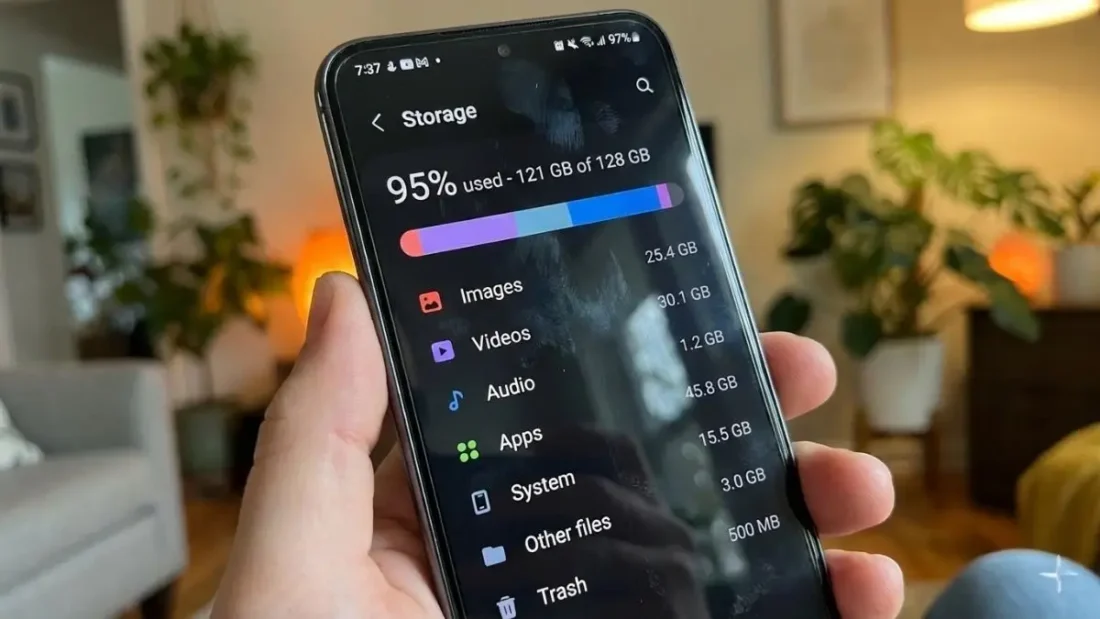
We have all been there: you are right in the middle of taking a perfect sunset photo or trying to download a new game, and that dreaded notification pops up—Storage Space Running Out. It is one of the most frustrating experiences in the modern smartphone era, especially when you feel like you haven’t even downloaded anything new lately. You might go through your gallery and delete a few videos or uninstall a heavy app, only to find that the storage bar barely moves. The truth is, Android is a bit of a pack rat. Behind the sleek interface and smooth animations, your operating system is quietly tucking away “digital lint” in corners you probably never think to check. Most users assume that clicking “uninstall” is the end of the story, but the reality is much messier. When we remove an app, we expect every single megabyte it occupied to vanish, yet Android frequently leaves behind a trail of configuration files, old downloaded assets, and cached data that stays tethered to your internal storage like a ghost. Over months and years, these leftovers accumulate into a massive mountain of wasted space. If you want to actually reclaim your device, you have to go on a manual hunt.
To track down these digital remnants, you need to dive into your smartphone’s File Manager. Look for the Internal Storage section, then navigate to the “Android” folder and specifically the “obb” subfolder. Inside, you will likely find a list of folders named after apps, some of which you might have deleted years ago. If you see a folder for a game you haven’t played since 2022, it is safe to say it’s just taking up space. You should also keep an eye out for leftover APKs—those installation files you used once and forgot about—and stray media folders. However, a word of caution for the over-eager cleaner: be careful not to delete data from apps you currently use. Wiping out the wrong folder could erase your custom settings or important local data that the app needs to function properly. It is a delicate balance of being thorough without being reckless.
Beyond the hidden folders of uninstalled apps, there is another silent storage killer that usually hides in plain sight: your travel history. Think about the last time you went on a road trip, a hike, or a vacation to a city with spotty cell service. To stay on track, you probably downloaded offline maps in an app like Google Maps. These maps are incredibly useful when you’re off the grid, but they are also surprisingly heavy. Each offline map can take up dozens or even hundreds of megabytes. If you are a frequent traveler or an outdoor enthusiast, you might have a dozen “Region 1” or “New York City” maps sitting in your storage from a trip you took six months ago. These maps don’t delete themselves; they just sit there, quietly eating up gigabytes while you wonder why your phone is sluggish. To fix this, you need to head into the Google Maps app, tap your profile icon, and select “Offline Maps.” From there, you can see the full list of downloaded regions. A quick tap on the three dots next to an old route allows you to hit “Delete,” instantly breathing life back into your storage capacity. If you use alternative navigation tools like Waze, the process is slightly different but the principle remains the same—look for a download manager and purge the old data.
Another major culprit in the battle for storage is the constant buildup of cached files and app data. To understand why this happens, you have to look at how apps actually work. Apps like Instagram, YouTube, and TikTok are designed to be fast and fluid. To achieve this, they store temporary files like images, scripts, and video thumbnails in a “cache” so they don’t have to download them every time you open the app. While the cache is meant to be helpful, it can quickly spiral out of control, especially with media-heavy social media platforms. Then there is “App Data,” which includes things like your login info, saved preferences, and offline content. While clearing your cache is generally a safe and easy way to free up a few hundred megabytes, clearing app data is a more nuclear option. It will log you out and reset the app to its factory state. If an app has become an absolute storage hog, you can find relief in your Settings menu. Head to “Apps,” select the offender, and tap “Storage.” You’ll be presented with the options to “Clear Cache” or “Clear Data.” It is often shocking to see an app that is only 100MB in size actually consuming 2GB of space due to its accumulated baggage.
Sometimes, the problem isn’t hidden folders or maps, but rather the sheer volume of files we forget we have. Hunting down large files manually is a tedious chore that most of us would rather avoid. We often have duplicate photos from WhatsApp groups or multiple copies of the same PDF document floating around in different folders. Thankfully, modern Android versions have become much smarter at helping us identify these. If you go to your Settings and look for “Device Care” or “Storage,” you will find a specialized tool for Duplicate Files and Large Files. This feature is a lifesaver; it scans your entire system and groups identical files together so you can delete the extras with a single tap. It also categorizes your largest files by size, allowing you to see exactly which 4K video or long-forgotten expansion pack is the primary offender. While we often focus on the big files, remember that a thousand tiny, unnecessary files can be just as damaging to your storage health as one giant movie file.
Finally, there is the most deceptive storage trap of all: the Trash bin. Many users think that once they hit “Delete” on a photo or a document, the space is immediately reclaimed. In reality, Android functions much like a PC. Deleted items are moved to a Recycle Bin or Trash folder where they sit for 30 days. This is a great safety net if you accidentally delete a precious memory, but it also means your storage remains clogged with “deleted” items for an entire month. If you are doing a deep clean to make room for an urgent update, deleting files is only half the battle. You must manually empty the trash to see the results. Navigate back to “Device Care” or “Storage,” find the “Recycle Bin” section, and empty it out. It is the final, essential step in truly clearing your device. Most of the storage hogs on our phones aren’t some mysterious system error; they are just bits of data hiding in plain sight. By making it a habit to check for residual files, clearing out old maps, and emptying your digital trash, you can ensure your Android device stays fast, responsive, and ready for your next big download.
Disclaimer: The information provided in this article has been collected from publicly available sources on the Internet. Readers are requested to verify this information with available sources.