No products in the cart.
Current date
February 23, 2026


Your Android Phone Is Secretly Stealing Your Storage—How To Reclaim Every Gigabyte Now
 James BrownFebruary 23, 20264 Mins read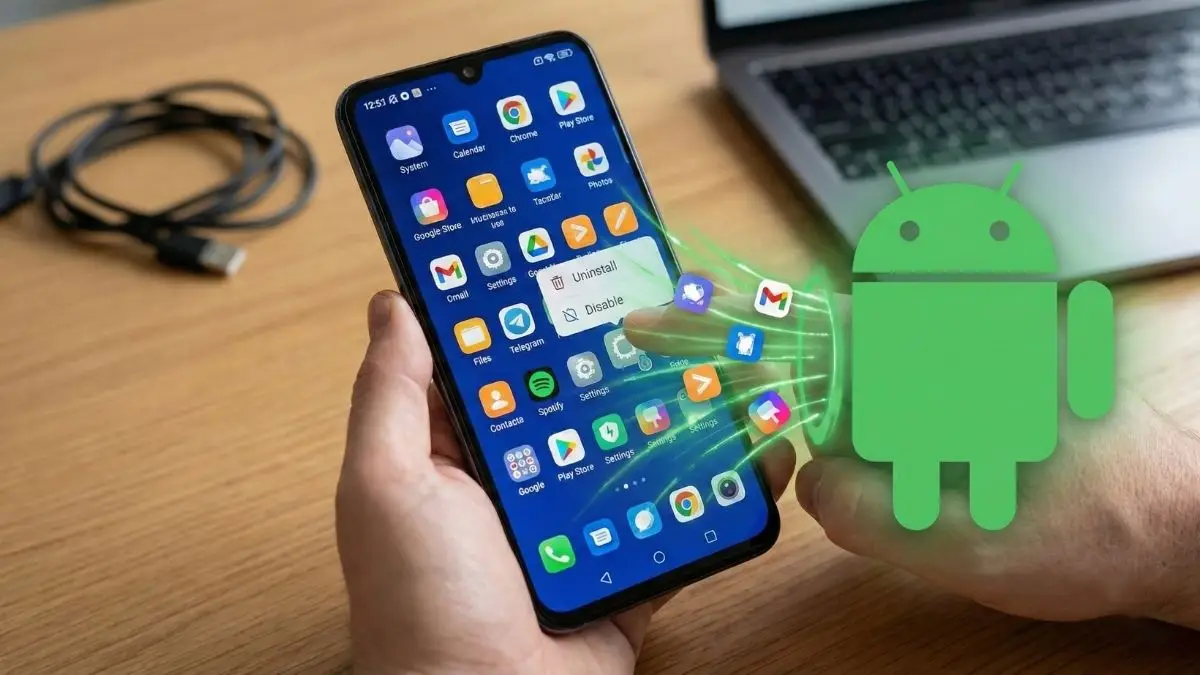
Share
URL copied
Your Android phone is a powerhouse of productivity and entertainment, but for many of us, it arrives with an uninvited guest list of apps we never asked for. From random mobile games you’ll never play to “helpful” tools that just duplicate what Google already does better, bloatware is a persistent nuisance in the mobile world. These preinstalled applications are more than just a minor annoyance; they represent a land grab for your device’s storage and can even chip away at your phone’s overall performance. If you have ever scrolled through your app drawer and wondered why you have three different calendar apps or a random travel booking tool you can’t seem to shake, you are dealing with the classic bloatware dilemma. Fortunately, taking back control of your digital space is entirely possible, even if some of those stubborn apps seem glued to your system.
To understand how to fight back, it helps to know where this digital clutter comes from in the first place. Bloatware typically enters your life through a few main channels. The most common source is the “out-of-the-box” experience provided by your phone manufacturer or your cellular carrier. Companies like Samsung or Verizon often have partnerships with software developers to include specific apps on every device they sell. Sometimes, these companies truly believe their proprietary services, like Bixby or specific carrier-branded cloud storage, add value. Other times, it is simply a matter of business; developers pay manufacturers to ensure their app is the first thing a user sees. In rarer, more frustrating cases, bloatware can appear later through bundle deals or even disguised malware that slips through the cracks, but for the most part, it is a legal, if unwanted, part of the hardware ecosystem.
The impact of these apps ranges from visual clutter to actual technical slowdowns. Even if an app is sitting idle, it might be running background processes that eat into your RAM or battery life. More importantly, storage is a finite resource. Even if an app icon only represents a few megabytes, dozens of them can add up, leaving you with less room for the photos, videos, and apps you actually care about. For many users, the sheer satisfaction of a clean, organized home screen is reason enough to start the purging process. A streamlined phone feels faster and is much easier to navigate when you aren’t dodging icons for “Global Goals” or niche shopping portals. It is also worth noting that these apps often request permissions you might not be comfortable with, such as access to your location or contacts, further complicating your digital privacy.
When you decide to start cleaning house, you will quickly find that Android handles app removal in two distinct ways: uninstalling and disabling. The gold standard is a full uninstallation, which completely removes the app’s files from your storage. On most modern Android devices, this is as simple as long-pressing the app icon on your home screen and selecting the “Uninstall” option. However, life isn’t always that simple. Depending on your device, certain “system apps” are protected. For instance, if you own a Google Pixel, you’ll find that staples like Google Maps, the Calculator, or Chrome are baked into the operating system and cannot be traditionally deleted. Similarly, Samsung Galaxy users might find themselves stuck with Samsung TV Plus or the Samsung Shop. While some of these can be removed during the initial setup of a brand-new phone, once you are past that window, they often become permanent fixtures.
If you are a Samsung user looking to tidy up, the process is straightforward. By navigating to your device settings and selecting the “Apps” menu, you can tap on a specific application and look for the “Uninstall” button at the bottom. Google Pixel users follow a similar path but usually manage removals through the “Manage apps & devices” section of the Google Play Store. If you have a mountain of junk to clear out, doing it one by one is a chore. A pro tip for most Android users is to use the “Select” feature. By long-pressing an icon and choosing “Select,” you can highlight multiple apps at once and hit “Uninstall” to wipe them all out in a single, satisfying wave. This bulk method is a lifesaver when you realize just how many useless trial games were tucked away in a sub-folder by your carrier.
For those stubborn apps that refuse to be uninstalled, “Disabling” is your next best friend. While disabling an app doesn’t actually delete the files from your storage—meaning they are still technically taking up space—it does the next best thing: it kills the app’s ability to run and hides it from your view entirely. Once an app is disabled, it won’t show up in your app drawer, it won’t update, and it won’t consume background resources. To do this on a Samsung or Pixel device, you simply go back to that same “Apps” menu in your settings. Instead of an uninstall option, you will see a “Disable” button. It’s a peace-of-mind fix that keeps your interface clean without requiring deep technical knowledge. It also prevents the app from nagging you with notifications about features you have no intention of using.
Of course, there is a “nuclear option” for the truly tech-savvy. If you absolutely must have a system app gone for good, you can use the Android Debug Bridge, commonly known as ADB. This involves connecting your phone to a computer and using command-line instructions to bypass the manufacturer’s restrictions. While highly effective, ADB is an advanced tool that requires a bit of a learning curve and carries a small risk if you accidentally delete a critical system component. For the average user, disabling is usually enough to stop the annoyance without the risk of “bricking” a vital function of the phone. Furthermore, some third-party tools offer a graphical interface for ADB, making it slightly more approachable, though still far more complex than a standard tap-and-delete method.
Ultimately, bloatware is rarely dangerous, but it is an unnecessary drain on your mobile experience. Whether you are clearing out space for a new high-end game or just tired of looking at a cluttered screen, taking ten minutes to audit your app list can make your phone feel brand new again. We often tolerate these apps because we think they are a mandatory part of the smartphone experience, but that is simply not the case. While we may never fully escape the preinstalled app trend as long as hardware margins are thin, knowing how to hide, disable, and delete these digital tagalongs puts the power back in your hands. Your phone should work for you, and its resources should be dedicated to the things you value. Taking the time to purge the junk is the first step toward a faster, cleaner, and more efficient digital life.
Disclaimer: The information provided in this article has been collected from publicly available sources on the Internet. Readers are requested to verify this information with available sources.
Author






Linux James BrownFebruary 17, 2026
Your Linux Desktop Just Got a Massive Power-Up: Everything New in KDE Plasma 6.6
If you have spent any time in the Linux world, you know that KDE Plasma is often hailed as the gold standard...
James BrownFebruary 17, 2026
LinuxJames BrownFebruary 11, 2026
I Ditched Dual-Booting: Why WSL is Finally Good Enough to Kill Native Linux
For the longest time, the ritual was always the same: hit the power button, mash the F12 key, and wait for the...
James BrownFebruary 11, 2026

LinuxDivyanshuFebruary 5, 2026
Stop Checking Your Phone: How to Add a Live Clock Directly to Your Linux Terminal
Hours vanish when code takes over. A flickering cursor holds attention while daylight fades outside. Is it evening? Past midnight? Hard to...
 DivyanshuFebruary 5, 2026
Related ArticlesJames BrownFebruary 18, 2026
DivyanshuFebruary 4, 2026
DivyanshuFebruary 4, 2026
DivyanshuFebruary 4, 2026

Samsung’s Triple-Folding Masterpiece Is Returning to Stores This Week
If you’ve had your eyes on the future of mobile technology and...
James BrownFebruary 18, 2026
Is Your Android Phone Hating You? Stop Making These 5 Common Mistakes
Almost twenty years of tucking Android phones into our pockets, yet strange...
DivyanshuFebruary 4, 2026

Stop Letting Gmail Annoy You: 5 Hidden Settings You Need to Change Right Now
Time passes, Gmail sticks around – seems that way at least. For...
DivyanshuFebruary 4, 2026
Stop Wasting Money: Your Old Android Phone is Actually a Secret Travel Weapon
Ever walked into a rental only to find the internet barely works?...
DivyanshuFebruary 4, 2026