No products in the cart.
Current date
February 24, 2026


Oops, I Deleted It! Why Recuva Is Still the King of Free Data Recovery in 2026
 James BrownJune 5, 20244 Mins read
Share
URL copied
We have all been there. You are clearing out old folders, feeling productive, and suddenly your heart drops. You realize that the “Temporary” folder you just permanently deleted actually contained your tax returns, five years of family vacation photos, or that work project due tomorrow morning. The panic is real, but before you start looking up expensive professional data recovery services that charge by the gigabyte, you need to know about a tool that has been saving lives (or at least files) for nearly two decades. We are talking about Recuva. Developed by Piriform, the same geniuses behind the legendary CCleaner, Recuva remains one of the most reliable and accessible ways to get your digital life back on track without spending a dime.
What makes this software so special in 2026? While the tech world is obsessed with AI-driven everything, Recuva sticks to what it does best: scanning your hard drive for “ghost” data that hasn’t been overwritten yet. When you delete a file on Windows, the OS doesn’t actually wipe the data immediately. Instead, it simply marks that space on your drive as “available.” Until new data is written over that exact spot, your file is still there, just invisible. Recuva acts like a high-tech metal detector, finding those hidden bits and stitching them back together. It works on everything from your internal SSD to that dusty USB stick you found in a drawer or even your digital camera’s SD card.
One of the biggest draws for the average user is the interface. It doesn’t look like a complex coding terminal or a scary piece of forensic equipment. Instead, it greets you with a friendly “Wizard” mode. This step-by-step guide asks you simple questions: What kind of files are you looking for? Where were they before they vanished? If you know you just lost a bunch of JPEGs from your “Pictures” folder, you can tell Recuva exactly that. This saves you from waiting through a massive scan of your entire system when you only need one specific thing. It’s this kind of user-focused design that makes it a favorite on sites like How-To Geek and XDA-Developers. It’s built for humans, not just IT pros.
But what if the simple scan doesn’t find anything? This is where the “Deep Scan” feature comes into play. While a standard scan takes just seconds, the Deep Scan rolls up its sleeves and looks at the file structure of your entire drive. It can find files that were deleted weeks or even months ago, provided you haven’t been filling your hard drive to the brim with new downloads. In our testing, the Deep Scan is surprisingly thorough, often pulling up files from formatted drives or “damaged” partitions that Windows refuses to even open. It’s a bit of a digital miracle worker for those “worst-case” scenarios where you thought the data was gone for good.
The software also provides a very helpful color-coded system to manage your expectations. After a scan, you’ll see a list of files with a green, orange, or red light next to them. A green light means the file is in excellent condition and can be restored perfectly. Orange indicates some data might be missing, while red means the file has been heavily overwritten and is likely unrecoverable. This transparency is great because it prevents you from wasting time trying to “fix” a file that is essentially just digital confetti. You can even preview images directly within the app before you hit the recovery button, ensuring you are bringing back the right photo of your cat and not a random system thumbnail.
For the power users out there, Recuva offers an “Advanced Mode” that gives you more granular control. You can sort results by file type, size, or path, and even search for specific strings of text within deleted documents. There is also a portable version of the software, which is a huge pro tip for anyone in a data loss crisis. You should never install recovery software onto the same drive you are trying to recover from, as the installation process itself might overwrite the very files you want to save. By running the portable version from a separate USB drive, you keep your data safe and increase your chances of a successful “save.”
Is there a catch? Well, it is worth noting that while the free version is incredibly generous—offering unlimited recovery with no hidden paywalls—there is a Professional version available. The Pro tier adds support for virtual hard drives and automatic updates, but for most people just trying to get a lost Word doc back, the free version is more than enough. It’s also important to remember that Recuva is primarily a Windows tool. If you are a Mac or Linux user, you’ll have to look elsewhere, but for the millions of people on Windows 10 or 11, it remains a must-have utility in the digital toolkit.
In an era where every second app wants a monthly subscription, finding a tool that is genuinely helpful, lightweight, and free is a breath of fresh air. Recuva doesn’t try to be anything it isn’t. It’s a fast, efficient, and surprisingly powerful undelete tool that has stood the test of time. So, the next time you accidentally empty your Recycle Bin or a thumb drive suddenly shows up as “empty,” don’t panic. Take a deep breath, download the Recuva wizard, and let it do its magic. You might just find that your “lost” files were just waiting for someone to look a little closer.
| Feature | Recuva | Disk Drill | EaseUS Wizard | PhotoRec |
| Best For | Casual users / Quick fixes | Professional recovery | Severe data loss | Tech-savvy users |
| Free Version | Unlimited Recovery | Up to 500MB | Up to 2GB | Unlimited (Open Source) |
| User Interface | Simple Wizard | Modern & Sleek | Highly Intuitive | Command Line (Text) |
| Success Rate | Moderate | High | High | High (but no names) |
| RAW/Formatted | Basic Support | Excellent | Excellent | Strong |
| OS Support | Windows Only | Windows & macOS | Windows & macOS | Win, Mac, Linux |
| Key Advantage | Completely free | Best file previews | Best partition repair | No cost, very deep scan |
| Price (Pro) | ~$24.95 (Cheap!) | ~$89.00 (Lifetime) | ~$69.95 (Monthly) | $0 (Forever) |
Disclaimer: The information provided in this article has been collected from publicly available sources on the Internet. Readers are requested to verify this information with available sources.
Author






Linux James BrownFebruary 17, 2026
Your Linux Desktop Just Got a Massive Power-Up: Everything New in KDE Plasma 6.6
If you have spent any time in the Linux world, you know that KDE Plasma is often hailed as the gold standard...
James BrownFebruary 17, 2026
LinuxJames BrownFebruary 11, 2026
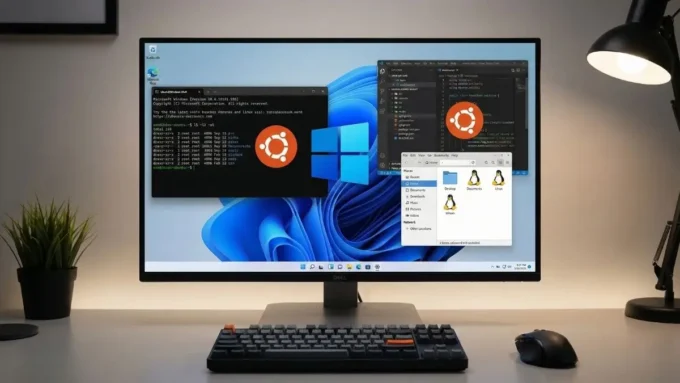
I Ditched Dual-Booting: Why WSL is Finally Good Enough to Kill Native Linux
For the longest time, the ritual was always the same: hit the power button, mash the F12 key, and wait for the...
James BrownFebruary 11, 2026

LinuxDivyanshuFebruary 5, 2026
Stop Checking Your Phone: How to Add a Live Clock Directly to Your Linux Terminal
Hours vanish when code takes over. A flickering cursor holds attention while daylight fades outside. Is it evening? Past midnight? Hard to...
 DivyanshuFebruary 5, 2026
Related ArticlesDivyanshuFebruary 5, 2026
DivyanshuFebruary 5, 2026
DivyanshuFebruary 5, 2026
DivyanshuFebruary 5, 2026

Stop Wasting Your Money: Why You Seriously Don’t Need a Flagship TV Anymore
There was a time, not all that long ago, when buying a...
DivyanshuFebruary 5, 2026
Stop Paying for Subscriptions: This One Open-Source Tool Just Killed Four of My Monthly Bills
That moment hits everyone. You’re checking your credit card bill, confused by...
DivyanshuFebruary 5, 2026
I Split My Home Network Into VLANs And It Fixed Problems I Didn’t Even Know I Had
Years went by before I ever gave Virtual Local Area Networks –...
DivyanshuFebruary 5, 2026

Your Echo Just Got a Massive Brain: Here’s Why You Need to Try the All-New Alexa AI Right Now!
More than ten years passed with Alexa by Amazon acting steady, even...
DivyanshuFebruary 5, 2026