Keeping your digital life safe shouldn’t feel like a monthly subscription trap. While Apple has spent years nudging every user toward its iCloud ecosystem, the reality is that many of us are hit with that “iCloud Storage Full” notification way too soon. Whether you are dealing with limited storage space, frustratingly slow upload speeds, or simply a lack of reliable internet access, there are plenty of valid reasons to look beyond the cloud. Privacy-conscious users also often prefer to keep their sensitive messages, photos, and health data stored locally on their own hardware rather than on a server across the globe. Fortunately, in 2026, creating a complete, secure, and free backup of your iPhone using a computer or an external storage device is easier than it has ever been.
The most reliable way to gain full control over your data is by performing a local backup on a PC or Mac. If you are using a Windows system or an older version of macOS (Mojave and earlier), iTunes is still your go-to command center. To get started, ensure you have the latest version of iTunes installed on your desktop. Simply connect your iPhone using a high-quality USB cable—ideally the original one to avoid connection drops. Once the device is plugged in, you will need to unlock your iPhone and tap “Trust This Computer” to allow the handshake between devices. Open iTunes, click the small iPhone icon near the top left, and navigate to the Summary tab. Under the Backups section, you will see a choice between iCloud and “This Computer.” By selecting the latter, you ensure your data stays strictly on your hard drive.

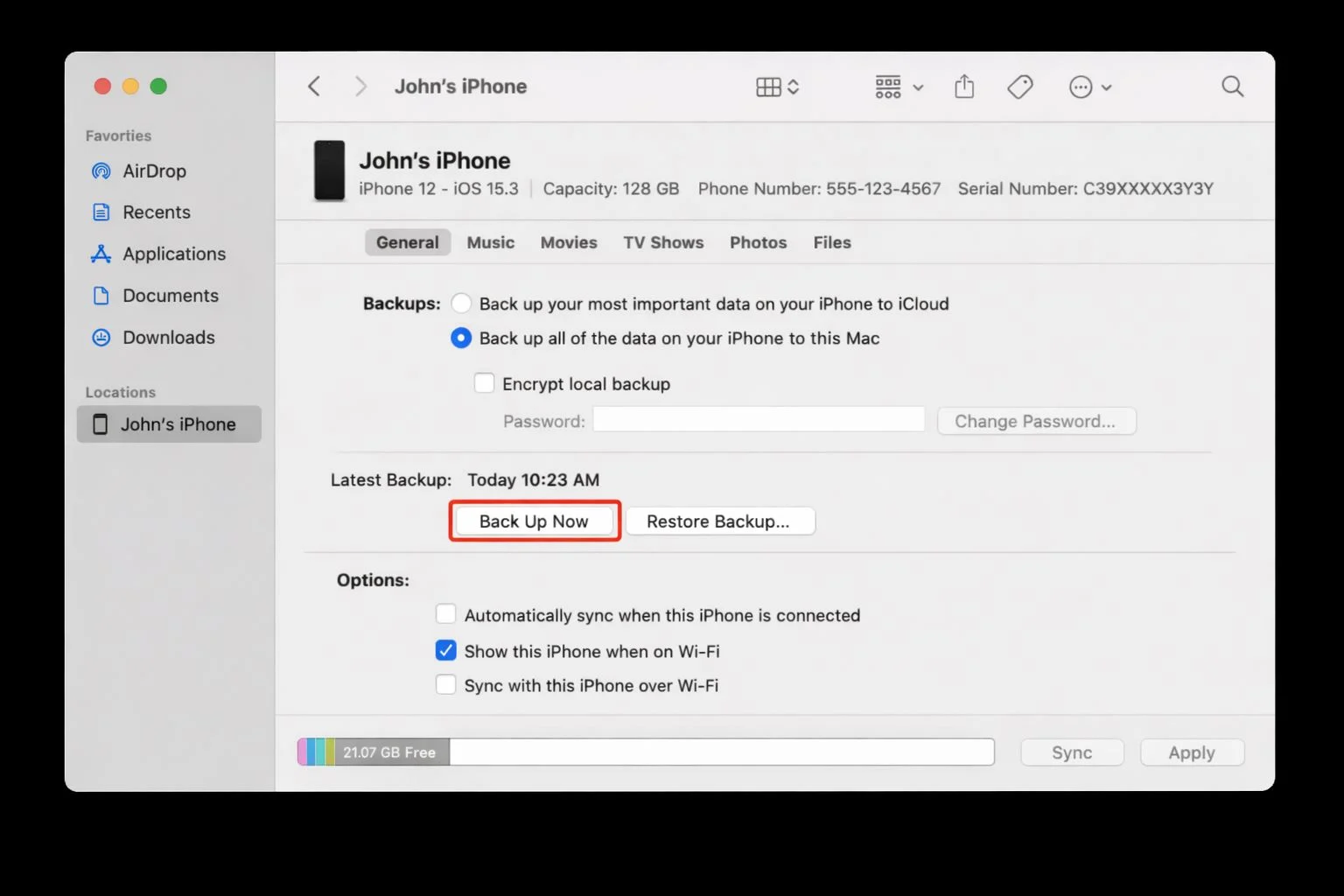
One expert tip that many users skip is the “Encrypt local backup” checkbox. While it sounds technical, checking this box is essential if you want your backup to include sensitive information like your saved passwords, Wi-Fi credentials, and Health data. Without encryption, these details are excluded for security reasons, making the backup less comprehensive. After setting a password you won’t forget, simply click “Backup Now” and let the software do the heavy lifting. This method is incredibly fast compared to cloud uploads because it relies on the physical speed of your cable rather than your Wi-Fi bandwidth.
For those on macOS Catalina or any of the newer versions released up through 2026, the process has shifted away from iTunes and into the Finder app. Apple essentially baked the device management tools directly into the operating system’s file manager. To begin, connect your iPhone to your Mac and open a new Finder window. You should see your device name appear in the sidebar under the “Locations” section. Clicking your device name will bring up a familiar interface. Just like the Windows method, you will want to look for the General tab and find the Backup options. Select “Back up all of the data on your iPhone to this Mac” and then hit “Back Up Now.” Finder provides a handy progress bar, and once it is finished, you can sleep soundly knowing a bit-for-bit copy of your phone is resting safely on your Mac’s SSD.
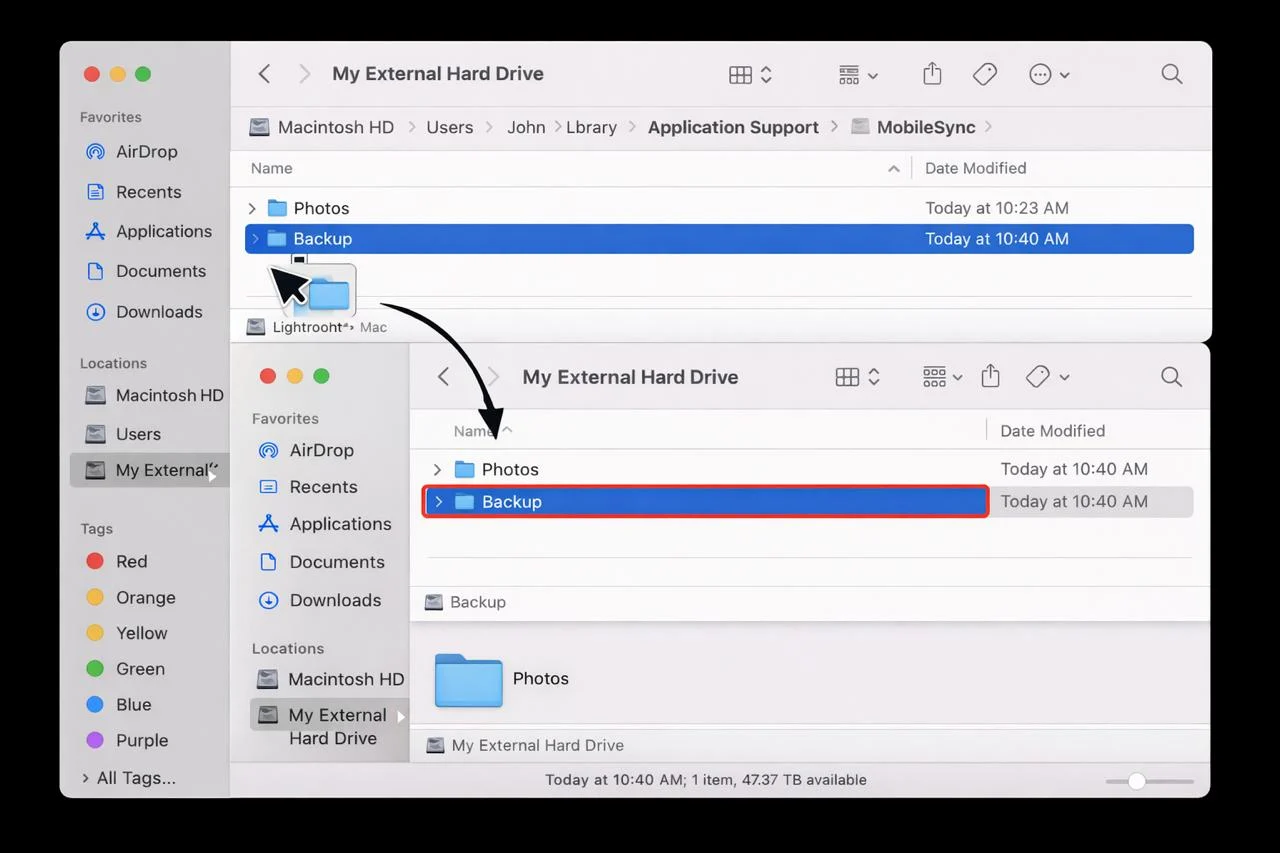
But what happens if your computer is running low on space? A full iPhone backup can easily take up 100GB or more, which is a lot for modern laptops with smaller drives. This is where the external hard drive method becomes a lifesaver. While iPhones cannot currently backup directly to an external drive through a simple “plug and play” setting, you can use your computer as a middleman. The trick is to perform a standard backup to your PC or Mac first and then manually move that folder to your external drive.
On a Windows machine, your backup is typically hidden deep in the system files. You can usually find it by navigating to the path: C:\Users\YourName\AppData\Roaming\Apple Computer\MobileSync\Backup. On a Mac, the path is ~/Library/Application Support/MobileSync/Backup. Once you locate the “Backup” folder, which will often contain folders named with long strings of random characters, you can simply copy and paste the entire directory onto your external hard drive. After the transfer is complete, you can delete the version on your computer to free up space. Just remember that if you ever need to restore your phone, you must move the folder back to its original location on your computer so iTunes or Finder can “see” it again.
Sometimes, you don’t actually need a full system backup; you just want to make sure your precious memories are safe. If photos and videos are your only concern, you can skip the complex backup process and perform a manual import. On Windows, you can use the built-in Photos app. Connect your iPhone, click “Import,” and select your device. This allows you to cherry-pick specific albums or simply “Import All” to your system or an attached external drive. Mac users have it even easier with the native Photos app. Once the iPhone is connected, clicking “Import All New Items” will sync your library locally without needing a single kilobyte of iCloud storage.

Taking the time to set up these offline backups provides a level of data sovereignty that the cloud simply can’t match. You aren’t at the mercy of a forgotten password or a server outage, and you certainly aren’t paying a monthly fee for the privilege of accessing your own files. By utilizing your PC, Mac, or an external drive, you are creating a robust safety net for your digital life that is fast, secure, and entirely under your control.
Disclaimer: The information provided in this article has been collected from publicly available sources on the Internet. Readers are requested to verify this information with available sources.