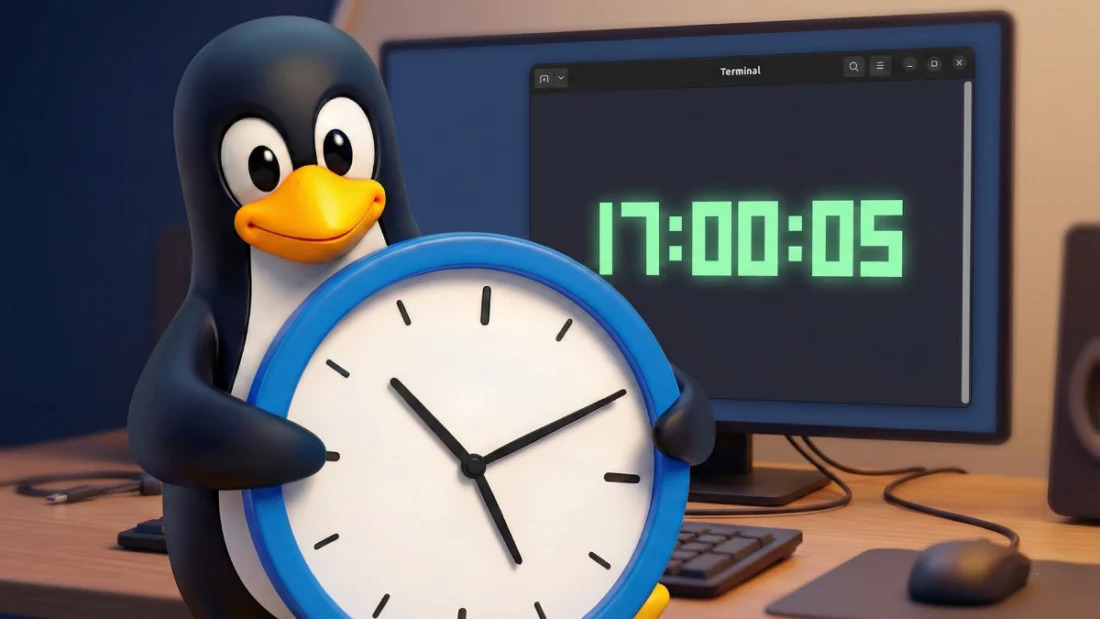
Hours vanish when code takes over. A flickering cursor holds attention while daylight fades outside. Is it evening? Past midnight? Hard to tell without checking something else. Most grab a phone or peek at some corner of the screen. That small shift pulls focus, ruins rhythm. The command line shapes daily work for many. It becomes more than software – it acts like home base. Seeing time right there fits naturally. Looking elsewhere feels unnecessary. Last week, everything felt scattered – too many tabs, too much noise. A steady rhythm somewhere would help. So I looked into showing time plainly in my workspace. Not something flashy. Just visible. Reliable. One method popped up first: a single command that prints seconds without pause. Then another appeared – a small script updating every second inside the shell window itself. Finally came a dedicated app built for terminals only, minimal but sharp when you glance over. Each fits a mood. Sometimes less motion is better. Other times, seeing each tick move feels grounding.
Start things off with something basic – try the watch command, probably sitting right there on your system. Many folks on Linux fire it up when checking logs or tracking tasks, yet overlook how well it handles a makeshift clock. Type just the right line into the terminal, let it loop fresh results again and again. See moments pass as each display pops back every couple of seconds. Toss in date alongside watch, catch full details: hour, day, zone, ticking forward without pause. Want things tidier? Try showing just hours, minutes, seconds in the display. No setup needed – runs instantly across nearly all systems. But here’s the catch: once started, it fills up the whole terminal screen. You’re locked into watching time pass, unable to enter anything else during that stretch. To escape, press keys to shut it down – yet doing so means losing sight of the clock when typing matters most.
It was that restriction which pushed me toward what I now prefer: showing the time right inside the terminal’s title bar. Not everyone does this – it feels slightly clever, mainly since it relies on a bash loop plus special character codes to push info into the window border instead of printing below. A small script runs nonstop, feeding fresh timestamps to the header each second. Hidden in there is an ampersand tagging the command’s tail, signaling the system to keep it alive behind the scenes. Right where you need it, the time holds steady at the window’s edge, letting the terminal line stay open for whatever comes next. As seconds pass quietly above, typing commands feels uninterrupted – building files, moving through folders, launching tools happens just like before. A quiet presence, never pushing itself forward, simply fitting into the space without crowding anything else. Running silent behind every task, it remains active only as long as that terminal stays open, vanishing when done. For those watching their room on screen, this way keeps track without taking more than its share.
Something flashier? Try standalone clock apps made just for terminals. Open-source options exist – creative, clean, built to reshape how time shows up onscreen. Tty-clock stands out among them. Screen fills with sharp digits, centered, clear. Lightweight by design, it runs without slowing things down. Tty-clock wins me over because of its flexibility. A handful of basic options let you wrap the display in a border, tweak hues to fit your terminal’s look – also switching between 12-hour and 24-hour timing without hassle. Picture this: one screen doing heavy work while another quietly shows time like a digital shrine. Style leans into that underground coder vibe, yet setup? Smooth across Ubuntu, Fedora, Arch Linux – each pulls it straight from their own installer tools.
If you like Rust, here’s something else worth checking: Clock-tui. Not your average clock – fast, clean, built to handle more than seconds ticking by. Stopwatch mode lives inside it, along with a countdown function. Great when focusing hard, say during Pomodoro sessions, or simply measuring effort on small jobs. Looks sharp on screen, no fuzzy edges or laggy redraws. Runs smooth since Rust powers every part of it, making sure nothing drags or crashes mid-use. Digits can grow bigger when you need to see them from far away. Though built-in tools fill the whole screen just like watch does, their look is cleaner, sharper somehow. A finished vibe comes through in how they present time.
Picking what works comes down to your needs. When speed matters most, rely on the watch command. For something quiet and always there, try the title bar trick instead. Want your terminal to stand out like a gadget on display? Go for Tty-clock or Clock-tui. Whichever path you take, a real-time clock tucked inside your terminal adds a subtle boost that quietly changes how you handle minutes and hours. Staying focused gets easier when your phone stays put – turns out, that quiet tick of a live clock can make all the difference. A clutter-free screen pulls attention back without fanfare, just steady progress while typing commands. Somehow, watching time pass in real-time keeps distractions distant, almost like it builds momentum on its own. Little changes stick better when they feel natural, not forced into place by rules or apps. The right detail at the right moment? Often silent, always effective.
Disclaimer: The information provided in this article has been collected from publicly available sources on the Internet. Readers are requested to verify this information with available sources.