
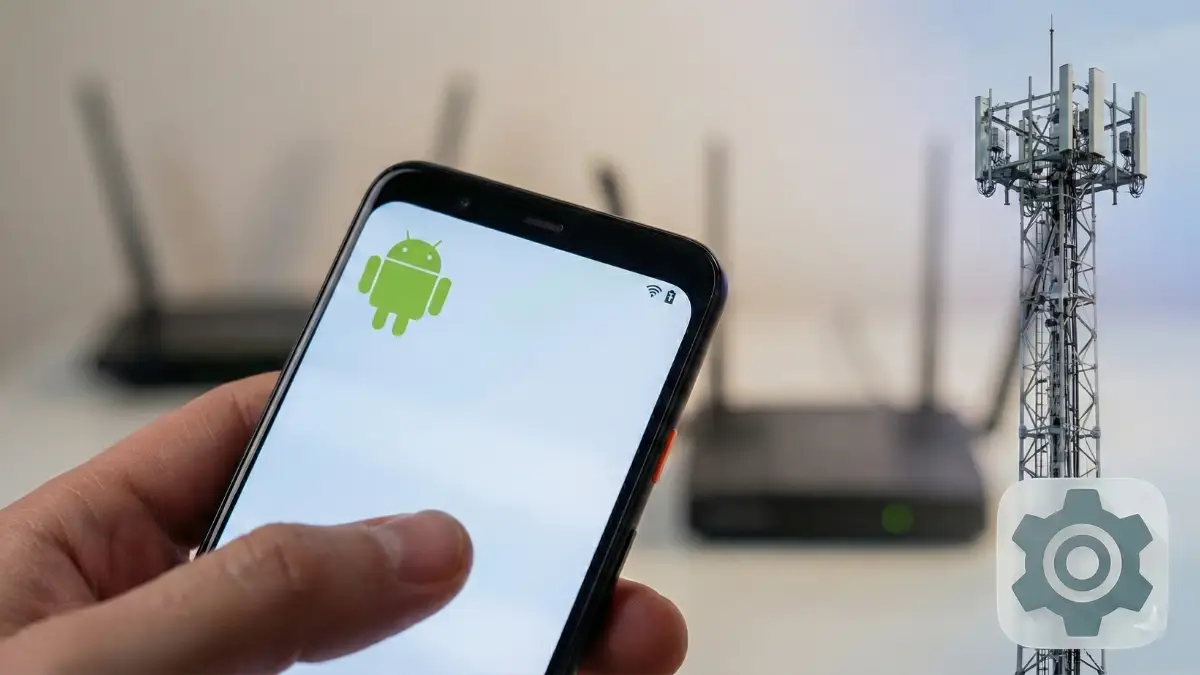

If you have ever reached the end of a long day at home, only to realize your phone is surprisingly low on juice despite being connected to Wi-Fi the whole time, you aren’t alone. Most of us assume that when we are tucked away at home or in the office, our phones are taking a break from the power-hungry task of hunting for cellular signals. Unfortunately, there is a hidden culprit buried deep within your Android system that is likely keeping your mobile data radio running at full blast even when you don’t need it. This feature is called “Mobile Data Always Active,” and while it sounds helpful on paper, it might be the biggest silent battery killer on your device.
The premise behind this setting is actually quite simple. Android wants to ensure that you have a seamless internet experience, no matter where you are. By keeping your mobile data active in the background while you are on Wi-Fi, your phone can switch between networks instantly. If your Wi-Fi suddenly cuts out or if you step out of the door to run an errand, your phone doesn’t have to spend those few awkward seconds “waking up” the cellular radio to find a signal. It’s already connected and ready to go, much like keeping an app open in the background so it resumes instantly when you tap it. While this “always-on” approach makes for a smoother user experience, it comes at a literal cost to your battery percentage.
You might be wondering why such a battery-draining feature is enabled by default. For the average user, Google prioritizes a frictionless experience over minor battery gains. Most people would likely find a three-second delay in their Spotify stream or a paused download more annoying than losing a few percentage points of battery life by the end of the day. However, for those of us who spend the vast majority of our time in areas with rock-solid, reliable Wi-Fi, keeping the cellular radio constantly primed is essentially a waste of energy. If you are sitting on your couch and your Wi-Fi is perfect, your phone is burning extra power for a transition that might not happen for hours.
The problem is that you won’t find this toggle in your standard network or battery menus. It is tucked away in the Developer Options, a secret “power user” sanctuary where Google hides settings that could potentially mess with your phone’s performance if handled carelessly. To get there, you have to perform a bit of a digital secret handshake. You’ll need to head into your Settings app, scroll down to “About Phone,” and find your “Build Number.” Tapping that build number seven times in a row will unlock the Developer Options. You might even see a little toast notification cheering you on, telling you that you are “now a developer.” Once unlocked, you can find the new menu under Settings > System > Developer Options.
Inside this menu, you’ll find a massive list of toggles and sliders. Scroll down until you hit the “Networking” section, and there you will see it: “Mobile Data Always Active.” If your phone is like most, that switch will be flipped to the “on” position. Turning it off stops your phone from maintaining that constant background cellular handshake while your Wi-Fi is active. The battery savings from this one tweak can be surprisingly significant depending on your device and your signal strength. In real-world testing on a modern device like the Pixel 10, mobile data can account for nearly 16% of daily battery usage even when the user is on Wi-Fi for ten hours and only leaves the house for twenty minutes. That is a lot of power dedicated to a very small window of actual use.
Now, is there a downside to flipping the switch? For most, the answer is a resounding no. Modern smartphones have become incredibly efficient at connecting to networks. Even with this setting disabled, the handoff between Wi-Fi and 5G is often so fast that you might not even notice a difference. In many cases, the phone still switches over in less than a second. However, there is one specific group of people who might want to leave this setting alone: those who rely heavily on Wi-Fi calling. If your home has a spotty Wi-Fi signal and you are frequently on important calls, disabling this feature could lead to a dropped call if the Wi-Fi dips and the cellular radio isn’t ready to catch the handoff instantly.
Aside from that specific niche, disabling this hidden setting is a fantastic way to eke out a bit more longevity from your hardware. It is one of those small, under-the-hood optimizations that doesn’t change how you use your phone but changes how long your phone can stay powered on. In a world where we are constantly searching for chargers, reclaiming 5% or 10% of your battery by simply telling your phone to stop doing unnecessary work is a no-brainer. Android is full of these little hidden gems that, when combined, can turn a phone that barely lasts a day into a true marathon runner.
If you decide to explore the Developer Options further, just remember to be cautious. While there are some great tools in there—like the ability to speed up window animations or check for fake cell towers—changing things at random can lead to some weird glitches. But for the “Mobile Data Always Active” toggle, the risk is minimal and the reward is a cooler, longer-lasting device. It is all about taking back control of your hardware and making sure your battery is being used for the things you actually care about, rather than keeping a backup connection running for a “just in case” scenario that may never happen.
Disclaimer: The information provided in this article has been collected from publicly available sources on the Internet. Readers are requested to verify this information with available sources.