

Whether you have known about a Mac long enough, chances are very high that you have experienced that storage full wall. It tends to occur at the worst time ever more specifically when you are updating a huge update or completing a project. A suit of paid applications has been the solution over the years. You could organize your workspace with CleanMyMac to simply tidy up, and AppCleaner to actually delete computer software, and Daisydisk to find those huge mega mystery files devouring your SSD. Though these applications are marvelous, they are usually accompanied by a subscription fee, an expensive price tag or even additional clutter on your menu bar. But what about being able to have all that power into one, light tool, and it is even free. Enter Moles, a recently-released open-source utility and the new product that is causing a stir among the power-user community is a unification of the best of these utilities into a single terminal powerhouse.
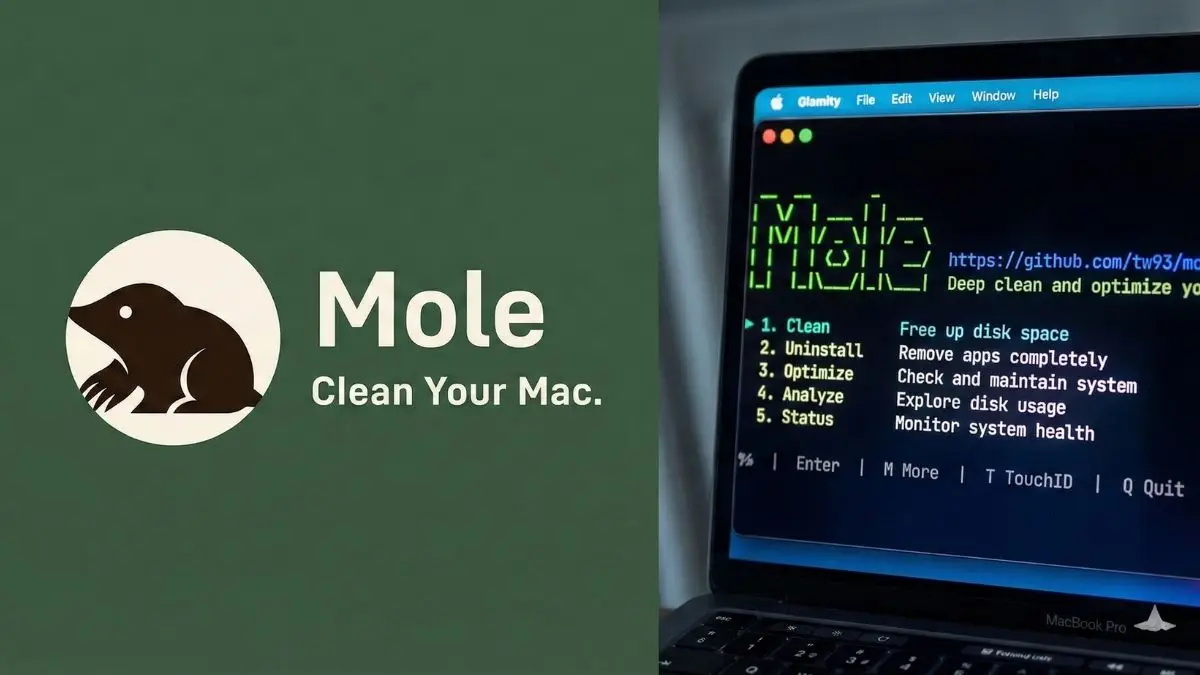
However, even though macOS is said to have a walled garden allowing users to do little with it, in fact, the OS is incredibly deep to those who choose to dive into it. Mole is the ideal illustration of the same. Made by tw93, a developer very easily recognised by Pake, Mole is a command-line each tool that can be used to clean everything in the system to monitoring the amount of stutter on the run. It is essentially a Swiss-Army Knife of your Mac, and it pulls together the capabilities of big-punch apps at a price into one binary. It does not contain upsells, no Pro versions, and no annoying notifications. It is merely common sense, open and shut, system maintenance.
The star of the show is of course the “mo clean” command. Most of us do not realise the amount of “digital lint” that our Macs accumulate in the process of their months of use. Caches, logs, left over of browsers and temporary files are sticking into hidden folders and choking up your storage at regular intervals. When I ran this out for myself on my own Macrobook I was horrified to see that it said that I had all most 40GB of reclaimable space. Much of this was junk which got left behind from developer tools like Xcode and Node in addition to the usual suspects like ancient browser-caches. What makes Mole comfortable to use is the “dry run” functionality. By running “mo clean –dry-run” you get a complete overview of all the files which would get deleted by the tool without the ability “to touch anything”. This with regard to the transparency it is a life saver when working on system files. You can even whitelist some paths using mo clean –whitelist to put your most important data like downloaded spotify playlists where you at
Another area that macOS is notoriously bad in, is that of getting rid of apps. Many users of the impression that dropped on the Trash icon – its end, but it is not so in most cases. Apps will often be left behind with “ghost” files – launch agents, preferences panes and hidden files and caches – which still work loop the loop or occupy space – long after the app is gone. Mole’s “mo uninstall” command for instance to do just such a thing as it does a deep scan of your system looking for these scattered remnants. It does not just work for apps that you were deleting at that very moment, it can actually track down leftovers from apps that you uninstalled weeks or months before you’d ever even heard of Mole. The interface is clean and intuitive and present you with list of apps that you have installed with their sizes and you can wipe them out completely without the need of a separate GUI application running in background.
But Mole isn’t just vacuum to your hard drive, it’s a really freaking awesome diagnostic tool. If you have ever used DaisyDisk to visualise the way your storage is going you should feel right at home at the “mo analys” command. It gives you hierarchical breakdown on where your disc usage is at and you can end up navigating through your folders using arrow keys or you can even use vim bindings. It makes it extraordinarily simple to recognise that one 10GB video file that you forgot about, and shuck it right on the spot. For a terminal tool it’s navigation is surprisingly fluid and it is a lot more efficient than clicking through Finder and folders. It makes that “WizTree” brand of efficiency of Windows on the Mac command line.
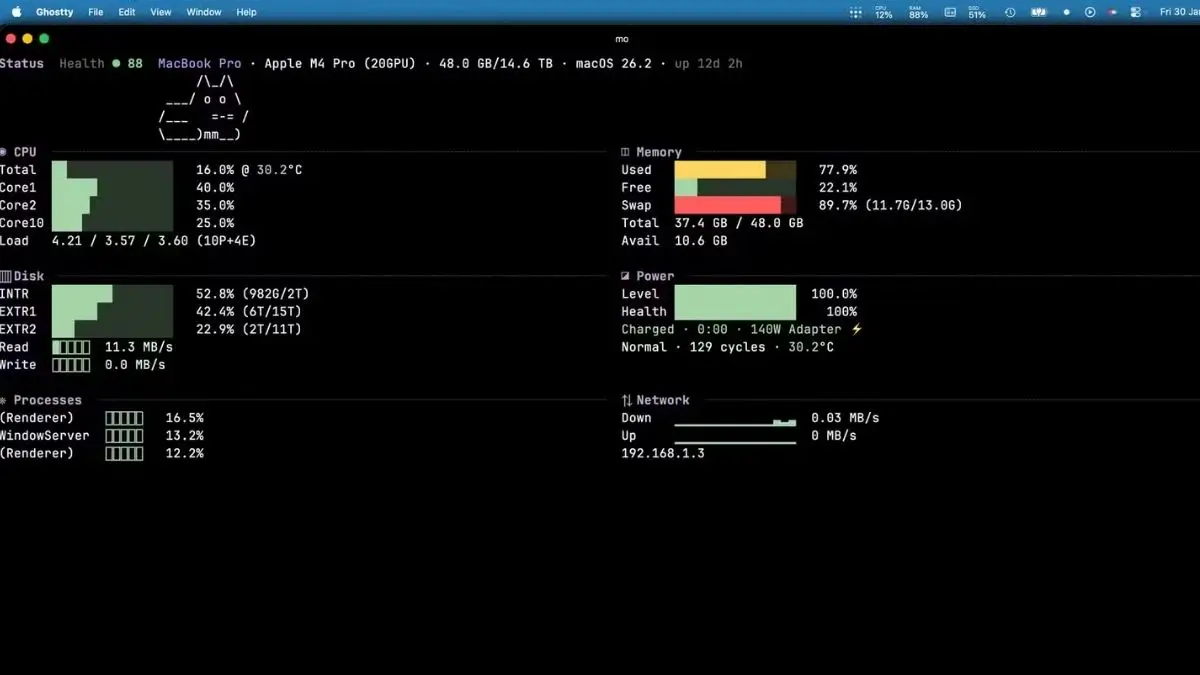
For the data nerds of the lot of you that simply love to keep an eye on your essential system vitals Mole provides you with “mo status.” This brings up a real time dashboard right in your terminal window, telling you what the CPU usage is, how much memory is being used up and how much activity is happening on the disc and even network stats. While maybe not exactly as sexy with all of the colourful graphs than you may be used to from iStat Menus it will give you all of the important data you may need without the bloat of a constantly running Menus process. It’s reminiscent of “btop” but specifically tailored for the macOS ecosystem and it’s a lightweight way of seeing if something is hogging your resources in the background or if your battery health is taking a dip.
Last but not least Mole has optimisation suite in form of “mo optimise” command. This is where does “under the hood” maintenance tasks that will be never considered by the majority of our users. In that respect, it is competent to rebuild system databases, clean up diagnostic logs, reset up network services and even update your Spotlight indexing. These are the kind of things that requires normally a series of complicated terminals commands or a pay based maintenance app to accomplish these tasks. Mole automates the whole process and therefore, it’s a “one-tap” solution to having your Mac continue running as smoothly as the day you unpacked it from its box.
Getting started with Mole is amazingly straight forward even more so if you are already using Homebrew. A simple “brew instal mole” is all that it takes to instal the utility in your system. If you aren’t a Homebrew user you can also just as easily use a curl command from the official GitHub repository as follows: Now that you have it all installed all you’ve got to do is to type in “mo” which will summon a function picker which walks you through assorted tools. Whether you are a developer if you are trying freeing your gigabytes of build artefacts or a user trying to get your Mac to stop complaining about the lack of storage, Mole is a must have addition to your toolkit. It’s fast, free and back on the driving seat of one’s own machine.
Disclaimer: The information provided in this article has been collected from publicly available sources on the Internet. Readers are requested to verify this information with available sources.